
How to Edit a Video with AI
Upload an MP4 or MOV and use text prompts to describe the subject, scene, or style you want to change, then see what the AI video editor can modify.
Turn a real room and its subject into a detailed voxel-art scene while preserving the original motion.
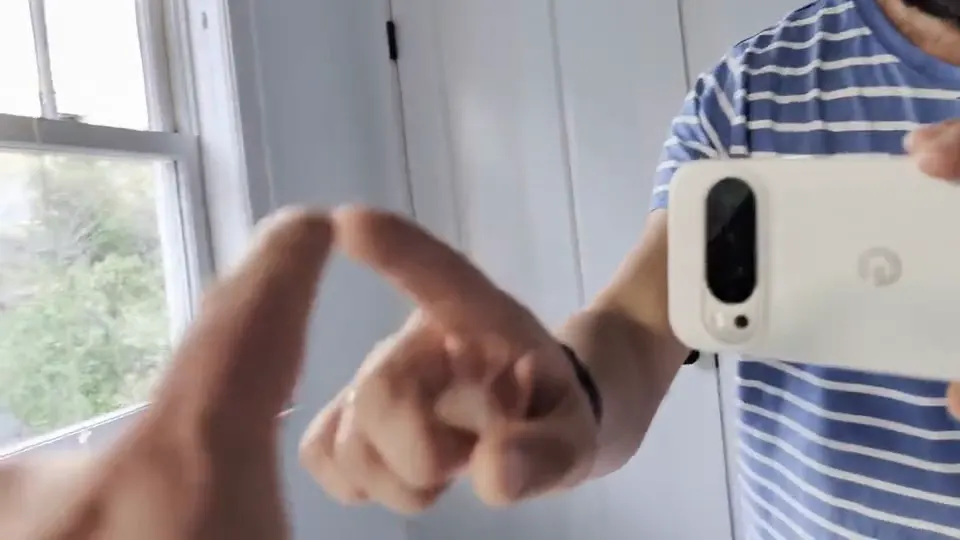 Before
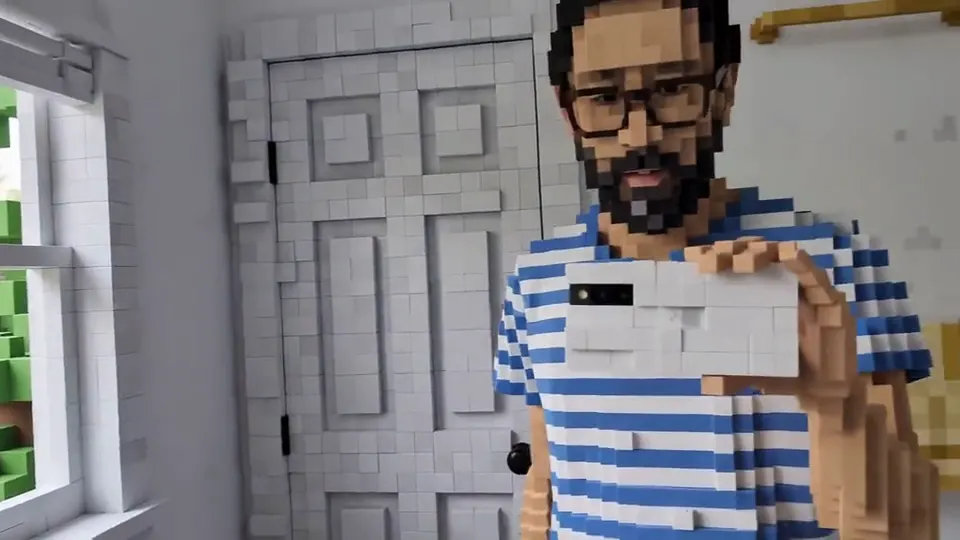 AI
AIWhen the person touches the mirror, the entire environment turns into 3D voxel art.
Edit MP4 and MOV Videos with Text Prompts
Edit MP4 videos with text prompts or upload MOV files for the same text-based video editing workflow. Use the AI video editor for a focused creative change without rebuilding a short clip from scratch.
Scene and environment changes
Replace or restyle the surroundings while keeping the main action recognizable.
Lighting and color adjustments
Change the time-of-day mood, color palette, contrast, or overall visual grade.
Clothing and appearance changes
Describe targeted appearance changes such as clothing colors or surface details.
Style transformation
Apply a different creative look, from cinematic grading to stylized environments.
Continue editing previous results
Use a completed result as the next input, then describe the next change you want.
Saved editing history
Signed-in users can return to video editing tasks, review results, download, or delete them.
Choose Your Plan
Free images include a watermark. Upgrade for clean outputs, faster generation, and commercial use.
Pro
-50%Unlimited Model Benefits
 Seedream 3.5Unlimited
- Seedream 3.5 ProUnlimited Not Included
 MiniMax H3 TurboUnlimited Not Included
- MiniMax H3Unlimited Not Included
- Upgrade to unlock all advanced models and enjoy exclusive discountsMiniMax-70%
 Gemini
 Nano
Nano GPT-50%Seedream-40%Veo
 Seedance
 Kling
Kling Grok
Grok Wan
Wan - 2,000 credits per month
- Up to 2,000 fast images
- Up to 200 basic videos
- Priority queue
- No watermarks
- Batch processing with AI tools
- Full privacy
Ultimate
-50%Unlimited Model Benefits
- Seedream 3.5Unlimited
- Seedream 3.5 ProUnlimited
- MiniMax H3 TurboUnlimited Not Included
- MiniMax H3Unlimited Not Included
- Upgrade to unlock all advanced models and enjoy exclusive discountsMiniMax-70%GeminiNanoGPT-50%Seedream-40%VeoSeedanceKlingGrokWan
- 5,000 credits per month
- Up to 5,000 fast images
- Up to 500 basic videos
- Highest priority queue
- No watermarks
- Batch processing with AI tools
- Full privacy
Max
-50%Unlimited Model Benefits
- Seedream 3.5Unlimited
- Seedream 3.5 ProUnlimited
- MiniMax H3 TurboUnlimited
- MiniMax H3Unlimited
- Upgrade to unlock all advanced models and enjoy exclusive discountsMiniMax-70%GeminiNanoGPT-50%Seedream-40%VeoSeedanceKlingGrokWan
- 10,000 credits per month
- Up to 10,000 fast images
- Up to 1,000 basic videos
- Highest priority queue
- No watermarks
- Batch processing with AI tools
- Full privacy
AI Video Editor FAQ
Learn how to upload an MP4 or MOV, describe an edit, review the result, and continue refining your video.
What is an AI video editor?
An AI video editor changes a video you already have using a text instruction. With Raphael, you can change scenes, colors, clothing, lighting, or visual style without using a traditional timeline editor.
How do I edit a video with AI?
Upload one MP4 or MOV, describe the change you want, then select Start Editing. When processing finishes, you can preview or download the result from your history.
What can I change in a video?
Try replacing the sky or background, adjusting lighting and color, changing clothing colors, or transforming the overall visual style.
Which video files can I upload?
You can upload one MP4 or MOV at a time, up to 50MB. Multiple videos cannot be uploaded together.
How long can the uploaded video be?
The uploaded MP4 or MOV can be up to 10 seconds long. If your video is longer, shorten it first or choose another file.
Can I continue editing a generated result?
Yes. Select Continue Editing on a completed result to use it as the next input video. Describe the next change and start another edit; a new credit estimate is shown before you continue.
Do I need to sign in to edit a video?
Yes. Before signing in, you can choose an MP4 or MOV, preview it locally, and write your edit instruction. To start editing, sign in with an active subscription or purchased credits. The page shows the estimated credits before submission.
How can I get better video editing results?
Clearly name what you want to change and the result you want, such as “Change the jacket to deep red while keeping the person unchanged.” Focus on one clear change at a time for a result that better matches your intent.
AI Video Editor
Edit your video with AI using simple text prompts.