Grok Imagine Image 2.0 AI Image Generator
Turn a text prompt into an image, or use reference photos to guide an edit. Choose 1K or 2K output and see the credits before you generate.
Use the Grok image generator on Raphael to create posters, product visuals and illustrated layouts with xAI’s Grok Imagine Image 2.0. Start from text or add up to three reference images, then choose the quality and aspect ratio for your design.
Create Grok AI images for your next design
Explore text layouts, product photography and illustrated scenes. These examples come from xAI’s official Image 2.0 gallery; the accompanying reference prompts are written by Raphael.
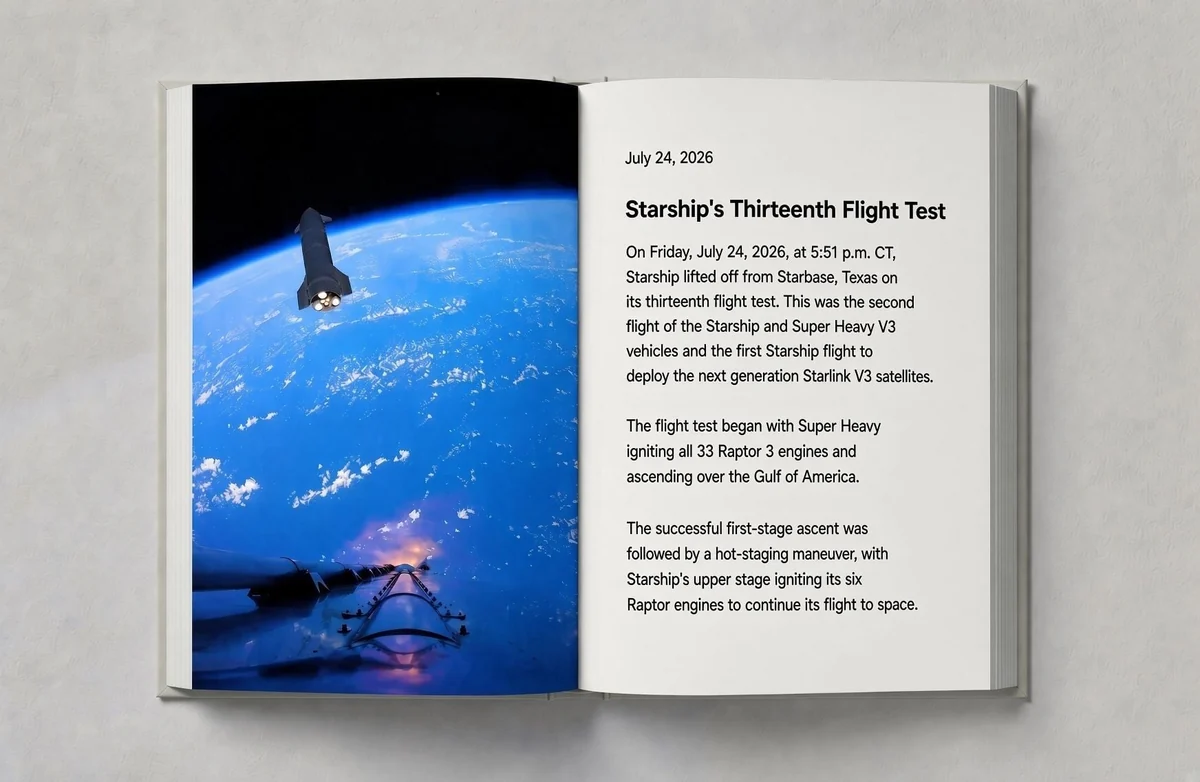
Text and image layouts
Combine images with a headline and body copy for a photo book, poster or illustrated page. Describe the wording, spacing, colors and composition in your prompt, then check generated lettering before using it in a final design.
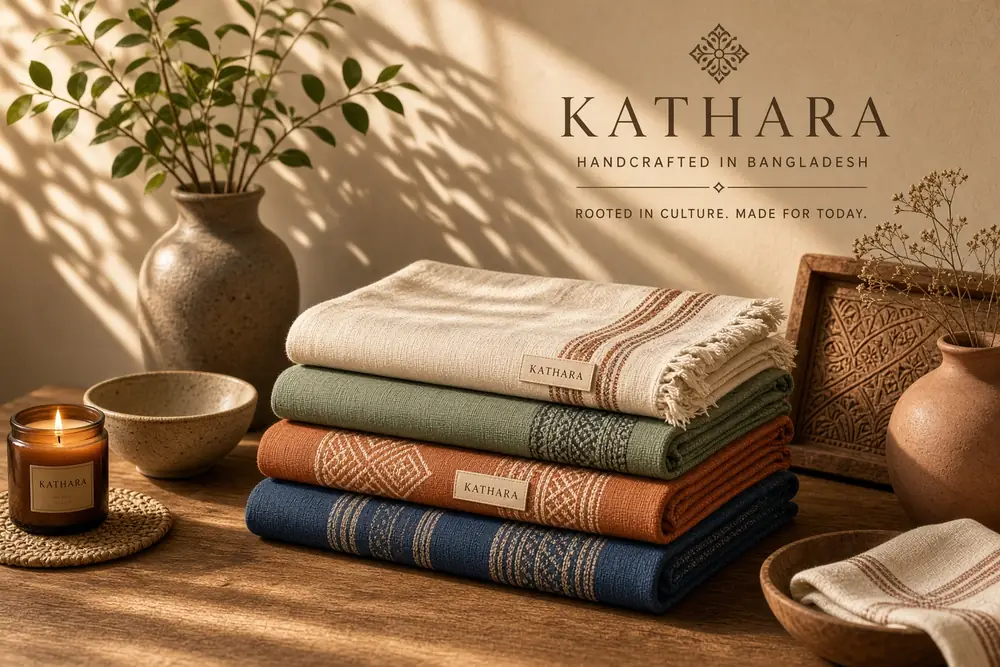
Grok image editor for product visuals
Use reference photos for Grok image editing: change a background, explore a color palette or adjust a product scene. Add up to three images and describe what to change and what to preserve. Review shapes, textures and other details in the result.
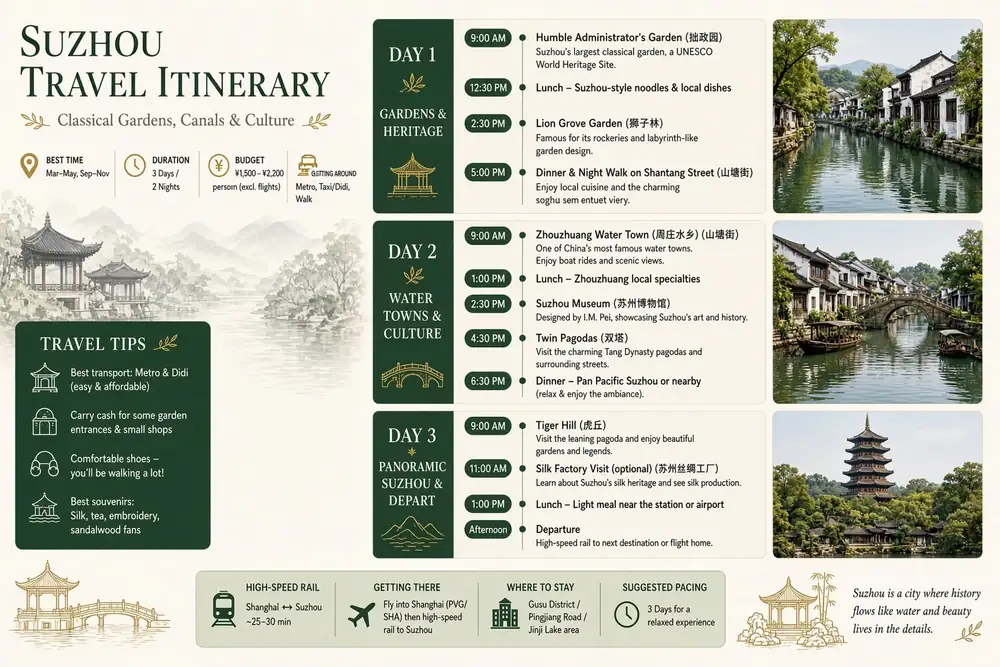
Image generation in 1K or 2K
Match Grok image generation to your layout with 1K or 2K output and Low or Medium quality. Choose Auto or one of 13 fixed aspect ratios for an infographic, social post or print concept. Generate one to four images per submission.
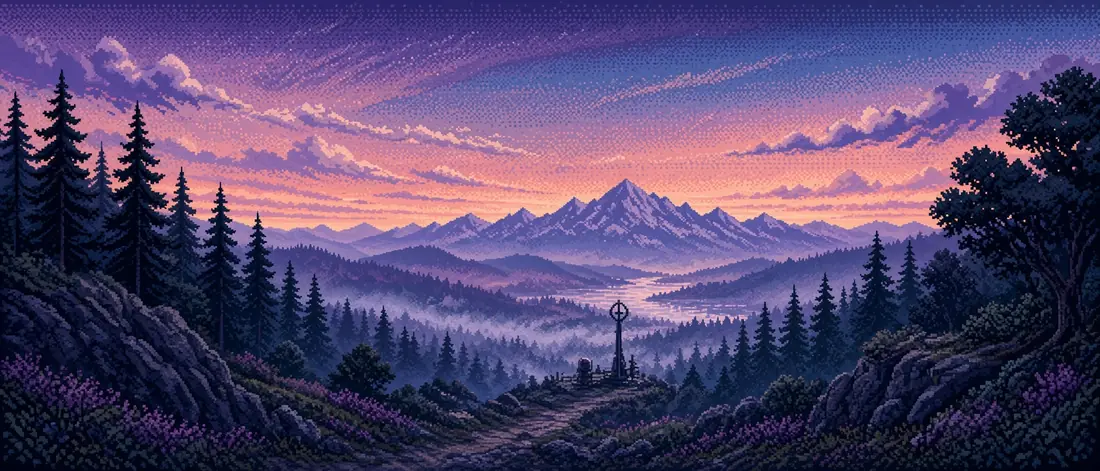
Illustration and landscape composition
Build a scene from its setting, lighting and style, from a pixel-art valley to an illustrated landscape. Choose a wide or panoramic ratio, or use Auto: with reference images, it follows the first image’s aspect ratio; without references, the model chooses the ratio. Use the example prompt as a starting point and adapt it to your idea.
Explore other models
Switch between top image models in one generator.
 NEW
NEWNano Banana 2.1
Up to 4K, multi-reference editing, web and image search.
Nano Banana 2
Multi-reference edits with fast style control.
Nano Banana 2 Lite
Fast 1K generation and editing for 11 credits.
GPT Image 2.5
Flare: fast creation, reference fidelity and natural detail.
GPT Image 2
Precise prompts, clean text, product shots.
Seedream 5.0 Lite
Cinematic realism and dramatic lighting.
Choose Your Plan
Free images include a watermark. Upgrade for clean outputs, faster generation, and commercial use.
Pro
-50%Unlimited Model Benefits
 Seedream 3.5Unlimited
- Seedream 3.5 ProUnlimited Not Included
 MiniMax H3 TurboUnlimited Not Included
- MiniMax H3Unlimited Not Included
- Upgrade to unlock all advanced models and enjoy exclusive discountsMiniMax-70%
 Gemini
 Nano
Nano GPT-50%Seedream-40%Veo
 Seedance
 Kling
Kling Grok
Grok Wan
Wan - 2,000 credits per month
- Up to 2,000 fast images
- Up to 200 basic videos
- Priority queue
- No watermarks
- Batch processing with AI tools
- Full privacy
Ultimate
-50%Unlimited Model Benefits
- Seedream 3.5Unlimited
- Seedream 3.5 ProUnlimited
- MiniMax H3 TurboUnlimited Not Included
- MiniMax H3Unlimited Not Included
- Upgrade to unlock all advanced models and enjoy exclusive discountsMiniMax-70%GeminiNanoGPT-50%Seedream-40%VeoSeedanceKlingGrokWan
- 5,000 credits per month
- Up to 5,000 fast images
- Up to 500 basic videos
- Highest priority queue
- No watermarks
- Batch processing with AI tools
- Full privacy
Max
-50%Unlimited Model Benefits
- Seedream 3.5Unlimited
- Seedream 3.5 ProUnlimited
- MiniMax H3 TurboUnlimited
- MiniMax H3Unlimited
- Upgrade to unlock all advanced models and enjoy exclusive discountsMiniMax-70%GeminiNanoGPT-50%Seedream-40%VeoSeedanceKlingGrokWan
- 10,000 credits per month
- Up to 10,000 fast images
- Up to 1,000 basic videos
- Highest priority queue
- No watermarks
- Batch processing with AI tools
- Full privacy
Grok Imagine Image 2.0 FAQ
How to use Grok Imagine on Raphael, write prompts, edit photos and choose your output settings.
What is Grok Imagine Image 2.0?
Grok Imagine is xAI’s creative AI offering. This page gives you access to its Grok Imagine Image 2.0 model for still images on Raphael. You can generate a new image from text or use reference photos to guide an edit.
How do I use Grok Imagine on Raphael?
Sign in with an account eligible for paid image models. Enter a prompt in the generator above, choose your quality, resolution and aspect ratio, and add reference photos if needed. Review the total credits, then generate. Your completed images appear in the results and history.
How do I write prompts for Grok images?
Describe the subject, composition, lighting and style, then add any text you want in the image. For photo editing, specify both the changes and the details to keep. The four examples above include reference prompts you can copy and adapt; change one or two details at a time to compare results.
Which reference images can I upload?
You can add up to three JPG, JPEG, PNG or WebP images. Each file must be smaller than 10MB (10,000,000 bytes). This is Raphael’s upload limit for this model.
What are the Grok image generation limits on Raphael?
On Raphael, prompts can contain up to 3,000 characters. Each submission supports one to four output images in 1K or 2K resolution, with Low or Medium quality. Actual pixel dimensions depend on the result and aspect ratio. These are the settings and limits for this integration, not a statement about daily limits on xAI’s own apps.
How many credits does it cost?
Per output image: 1K Low costs 11 credits, 1K Medium costs 17, 2K Low costs 17, and 2K Medium costs 22. Each reference image adds 2 credits per output. For example, four 1K Medium images with one reference cost (17 + 2) × 4 = 76 credits.
How does Auto aspect ratio work?
With reference images, Auto selects the closest supported aspect ratio based on the first reference image. Without references, the model chooses the output ratio. You can also choose from 13 fixed ratios, including square, portrait, landscape and panoramic formats.
Are these examples generated by this model?
Yes. The displayed images are from xAI’s official Grok Imagine Image 2.0 release gallery. Raphael wrote the reference prompts shown alongside them because the gallery does not publish full original prompts. Your results will vary.