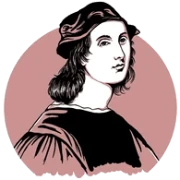
An AI image upscaler for every kind of image
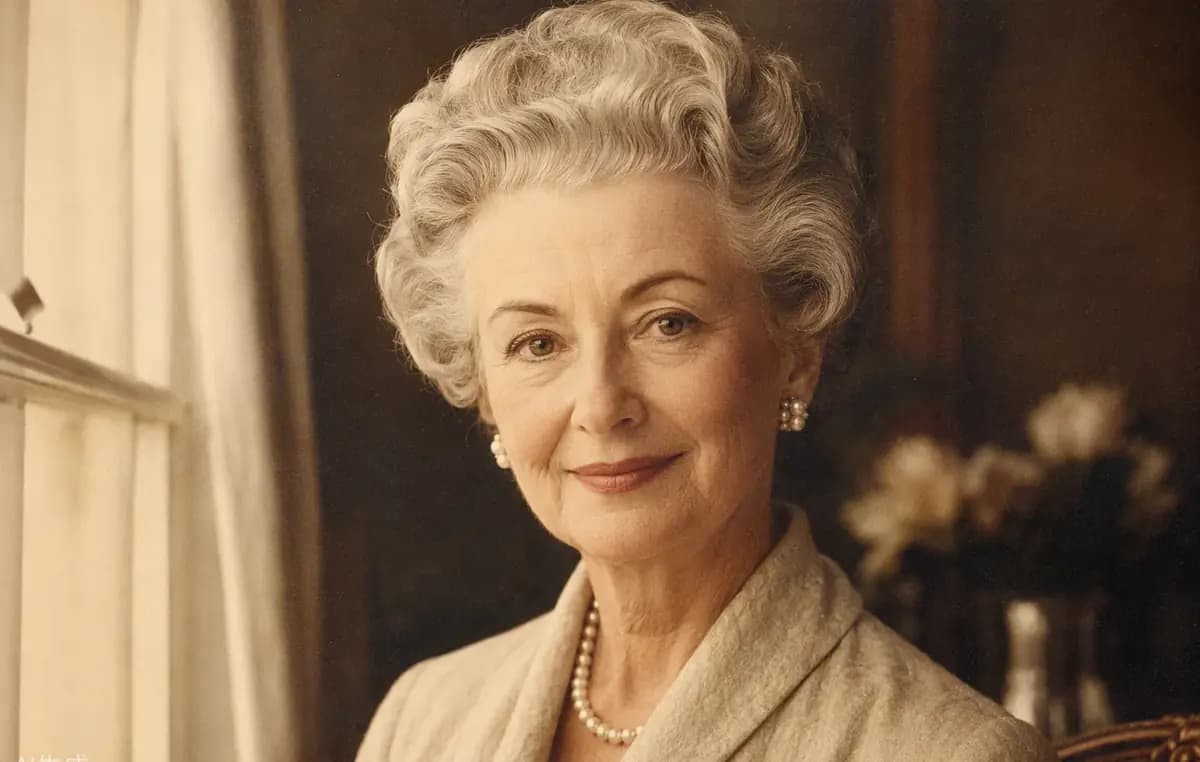
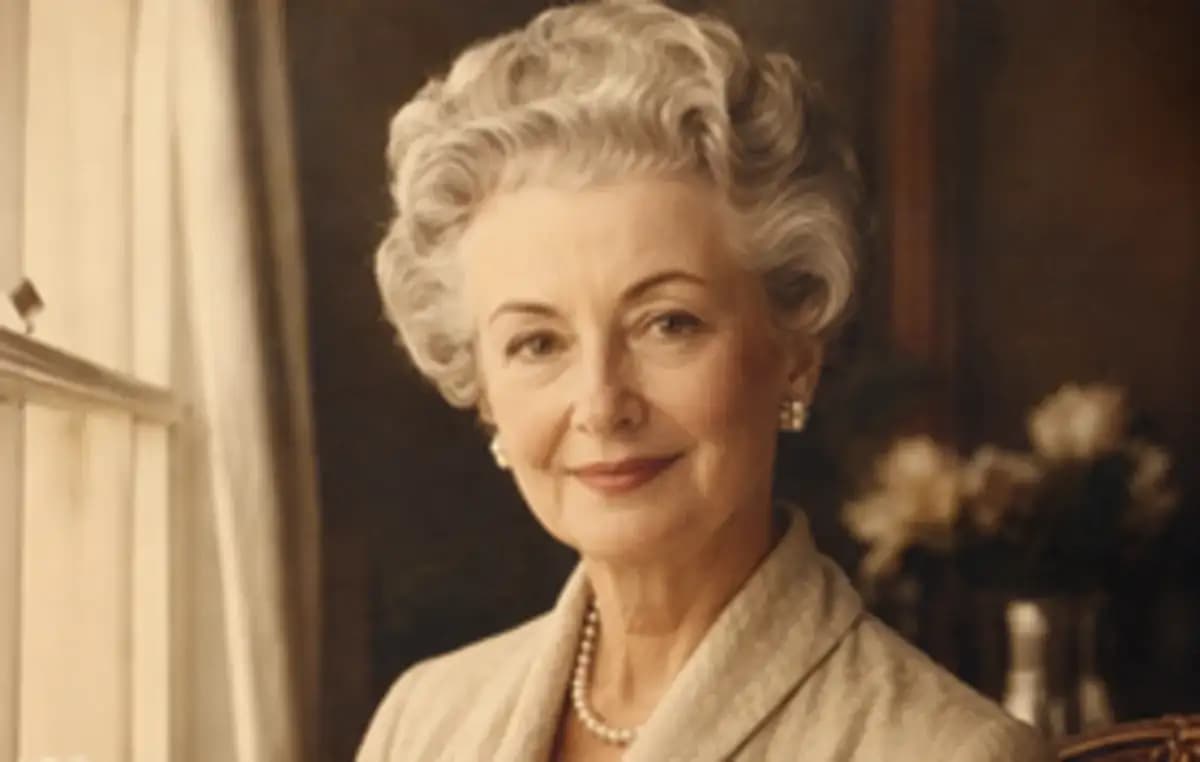
A useful image upscaler should do more than increase pixel dimensions. Compare the before and after examples to see how Raphael improves visible clarity while keeping faces, text, product edges, colors, and the original aspect ratio consistent.
Portraits & old photos
Upscale image quality in portraits, scanned prints, and old family photos while preserving the person’s recognizable features. The AI image upscaler reduces the soft, pixelated appearance of small files and strengthens hair, clothing, and facial edges without changing the original composition.
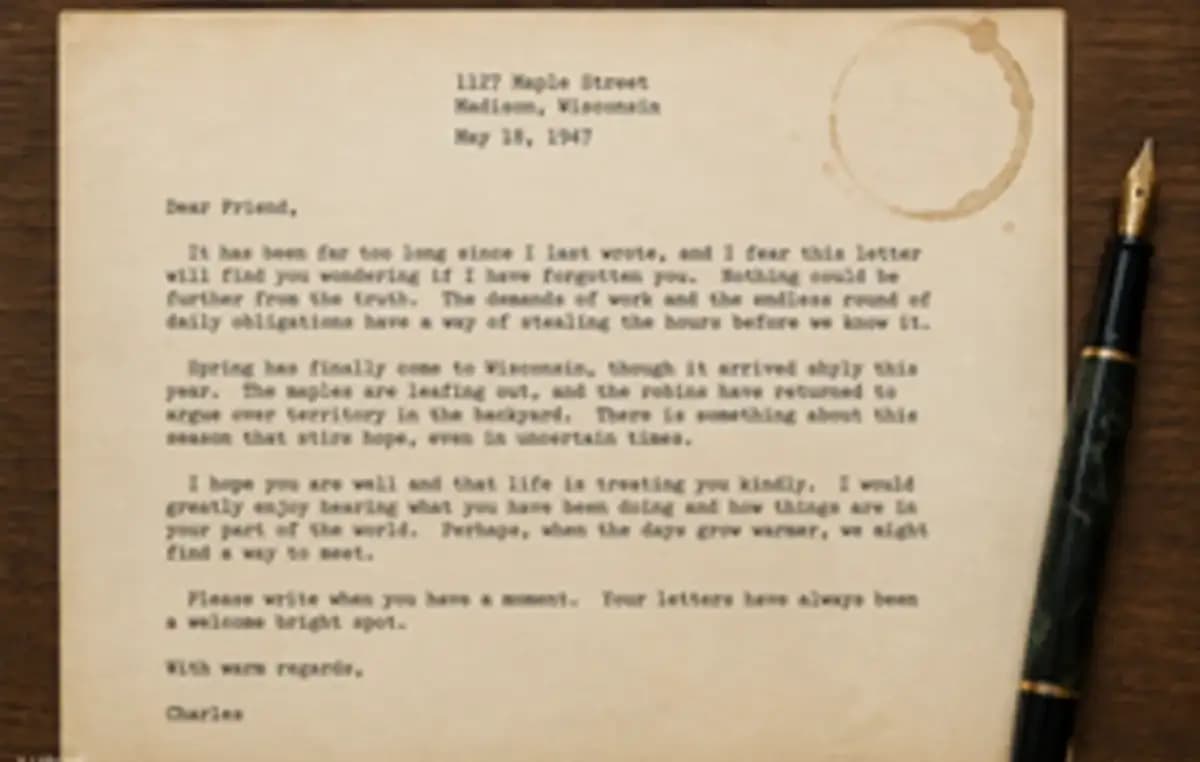
Documents & screenshots
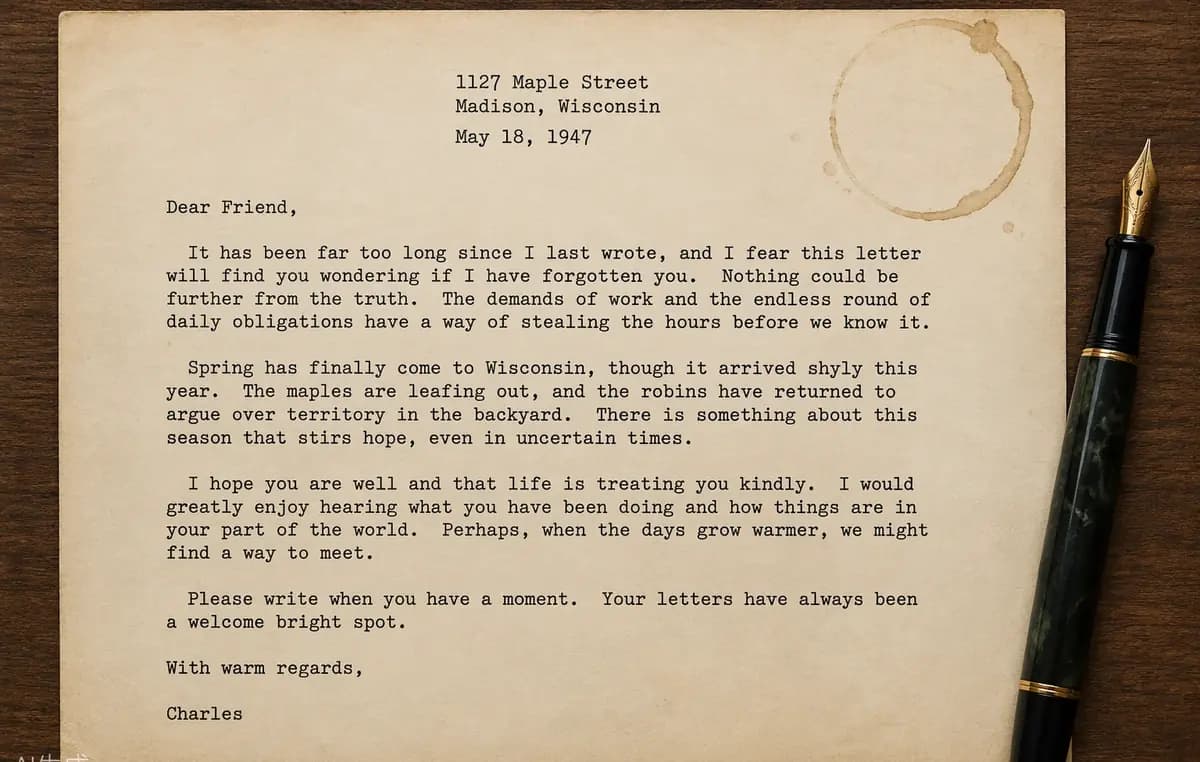
Increase image resolution for scanned documents, presentation slides, interface captures, and text-heavy screenshots. A 2× or 4× upscale gives letters and hard edges more usable pixels, making the result easier to read in documentation, tutorials, reports, and larger layouts.
E-commerce product shots
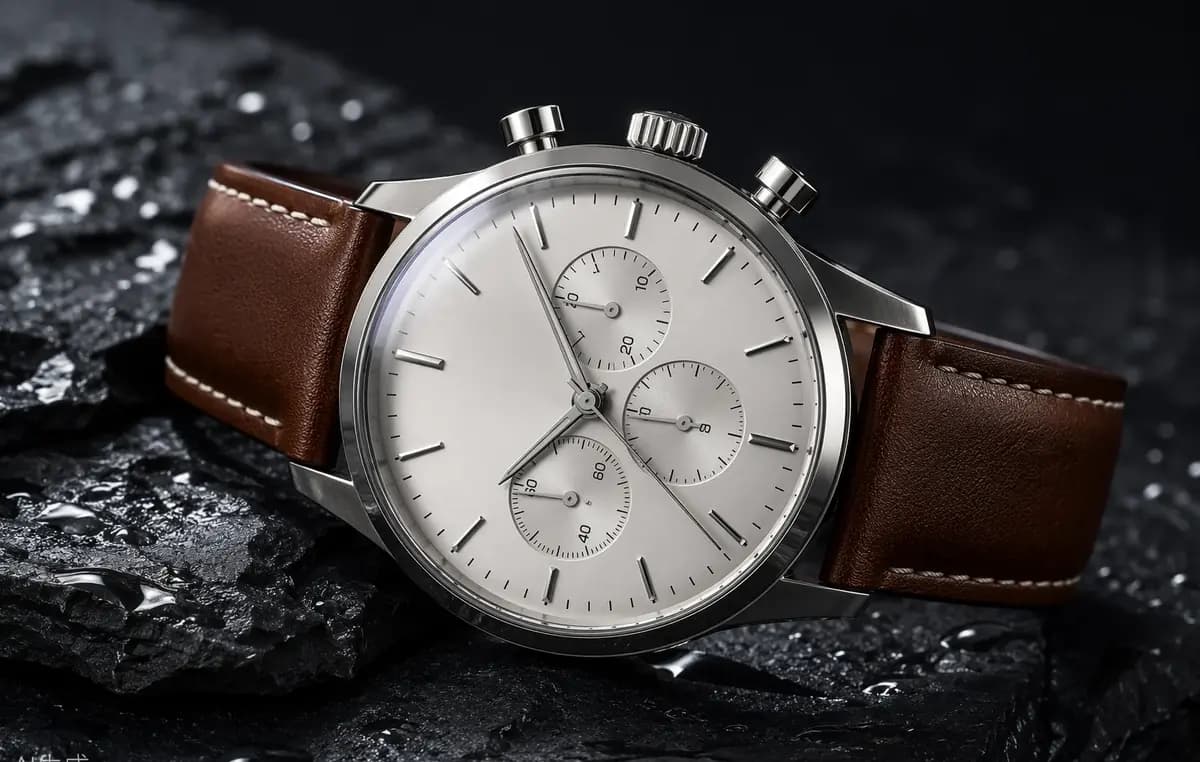
Upscale images for product listings, marketplace galleries, ads, and storefront zoom views. Raphael helps small source photos look clearer at larger display sizes while maintaining the product shape, material texture, packaging edges, and reflections needed for consistent e-commerce presentation.
AI art & illustrations
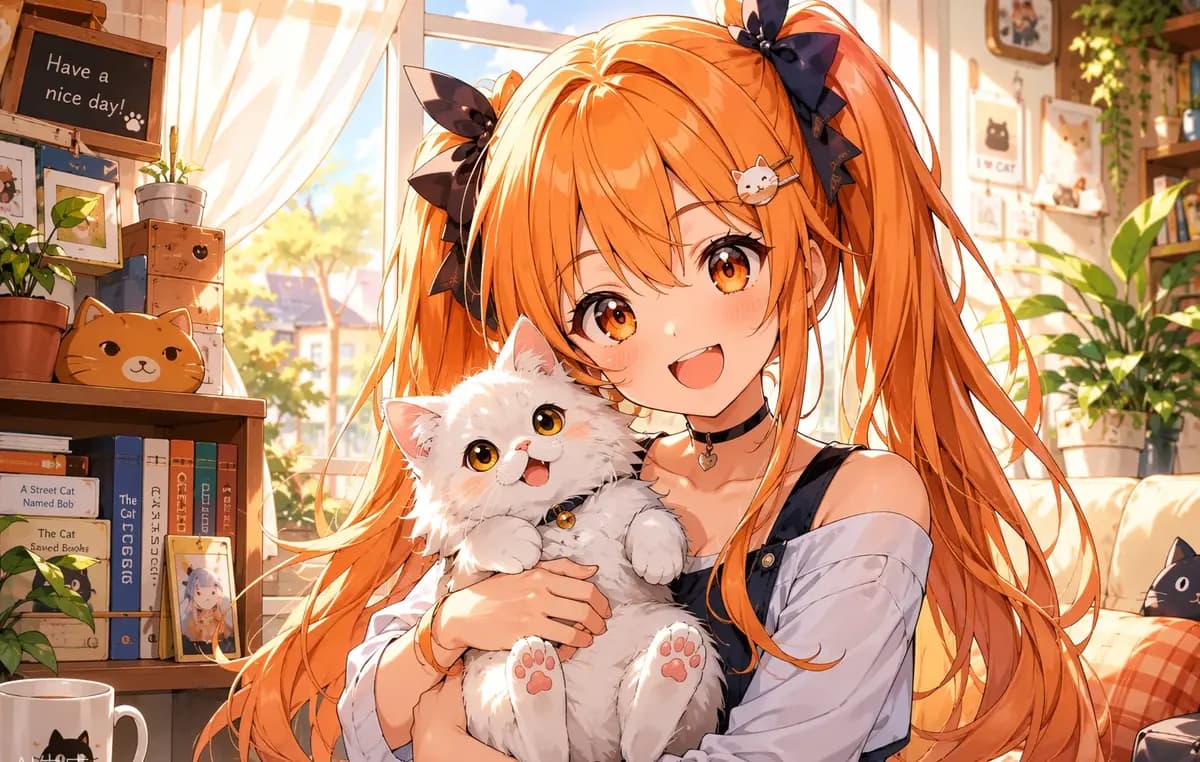
Use AI image upscale for generated artwork, anime, icons, posters, and digital illustrations that need a larger canvas. Clean line art, flat colors, gradients, and fine decorative elements remain visually defined when preparing an image for social posts, presentations, or print.
How to upscale an image
Sign in to receive free credits for Raphael’s free image upscaler. You do not need Photoshop or complicated resize settings: upload a supported file, choose the enlargement level, and let the AI calculate the largest proportional result within the selected limit. Oversized targets are reduced proportionally rather than cropped.
Upload your image
Choose a JPG, PNG, or WebP image up to 10 MB. You can start with one image for free using daily credits, while members and users with paid-source credits can add up to ten images for batch upscaling.
Choose 2× or 4×
Select 2× for a quicker enlargement up to 2048×2048, or choose 4× when you need more resolution up to 4096×4096. Raphael automatically fits the output inside the relevant limit without distorting the image ratio.
Download the result
Start the upscale and follow each image as an independent task. When processing finishes, compare the clearer result with the original, open it at full size, and download the successful output for your next design or publishing workflow.
Choose Your Plan
Free images include a watermark. Upgrade for clean outputs, faster generation, and commercial use.
Pro
-50%Unlimited Model Benefits
 Seedream 3.5Unlimited
- Seedream 3.5 ProUnlimited Not Included
 MiniMax H3 TurboUnlimited Not Included
- MiniMax H3Unlimited Not Included
- Upgrade to unlock all advanced models and enjoy exclusive discountsMiniMax-70%
 Gemini
 Nano
Nano GPT-50%Seedream-40%Veo
 Seedance
 Kling
Kling Grok
Grok Wan
Wan - 2,000 credits per month
- Up to 2,000 fast images
- Up to 200 basic videos
- Priority queue
- No watermarks
- Batch processing with AI tools
- Full privacy
Ultimate
-50%Unlimited Model Benefits
- Seedream 3.5Unlimited
- Seedream 3.5 ProUnlimited
- MiniMax H3 TurboUnlimited Not Included
- MiniMax H3Unlimited Not Included
- Upgrade to unlock all advanced models and enjoy exclusive discountsMiniMax-70%GeminiNanoGPT-50%Seedream-40%VeoSeedanceKlingGrokWan
- 5,000 credits per month
- Up to 5,000 fast images
- Up to 500 basic videos
- Highest priority queue
- No watermarks
- Batch processing with AI tools
- Full privacy
Max
-50%Unlimited Model Benefits
- Seedream 3.5Unlimited
- Seedream 3.5 ProUnlimited
- MiniMax H3 TurboUnlimited
- MiniMax H3Unlimited
- Upgrade to unlock all advanced models and enjoy exclusive discountsMiniMax-70%GeminiNanoGPT-50%Seedream-40%VeoSeedanceKlingGrokWan
- 10,000 credits per month
- Up to 10,000 fast images
- Up to 1,000 basic videos
- Highest priority queue
- No watermarks
- Batch processing with AI tools
- Full privacy
AI image upscaling questions
Clear answers about image resolution, 2× and 4× enlargement, online alternatives to Photoshop and Canva, batch processing, supported files, and how AI upscaling differs from ordinary resizing.
What is an AI image upscaler?
An AI image upscaler increases an image’s pixel dimensions while using learned visual patterns to improve the appearance of edges, textures, and compressed details. Unlike basic resizing, which mainly interpolates existing pixels, AI upscaling aims to produce a clearer enlargement that remains useful at a bigger display size.
Does upscaling change or crop my image?
No. Raphael preserves the original aspect ratio and does not crop the composition. If the calculated 2× or 4× target would exceed the selected output limit, the image is fitted proportionally inside that limit so its width-to-height relationship remains unchanged.
Should I choose 2× or 4×?
Choose 2× when you need a faster, moderate enlargement with an output up to 2048×2048. Choose 4× when the source is small or you need more usable resolution, with an output up to 4096×4096. Both options preserve the original aspect ratio.
How can I upscale an image without Photoshop?
Upload the image directly to Raphael, select 2× or 4×, and start the upscale. The online workflow handles proportional sizing and AI enhancement automatically, so you do not need to install Photoshop, select a resampling method, create a new document, or manually sharpen the enlarged result.
How do I upscale an image in Photoshop?
Current Photoshop versions can offer Generative Upscale under the Image menu, where supported users choose a 2× or 4× scale and an available model. If you prefer a focused browser workflow without opening a full editor, Raphael lets you upload, upscale, compare, and download from one page.
Can I upscale an image exported from Canva?
Yes. Export your Canva design as a JPG or PNG, then upload that file to Raphael and choose 2× or 4×. This is useful when a social graphic, presentation image, or downloaded design needs more pixels for a larger layout, clearer sharing, or print preparation.
Can ChatGPT upscale images?
ChatGPT can create images and edit uploaded images when image features are available, but a dedicated AI image upscaler provides a predictable 2× or 4× enlargement workflow. Raphael is designed for proportional output limits, before-and-after comparison, separate task tracking, and optional batch processing.
Can I upscale an image for free?
Yes. Sign in to receive free credits, then use those credits to upscale an image at 2× or 4× without buying a membership first. Each 2× image uses 3 credits and each 4× image uses 6 credits, so the number of free enlargements depends on your available credit balance.
Who can upscale images in a batch?
Users with an active membership or remaining paid-source credits can add up to ten images in one batch. Each image is uploaded, processed, tracked, and completed as an independent task, so one failed image does not prevent the other successful upscaled images from finishing.
How many credits does image upscaling cost?
Each 2× image costs 3 credits, and each 4× image costs 6 credits. Charges are calculated per image rather than per batch. If an individual image fails, the credits for that image are refunded independently without changing the completed results from other tasks.
Which image formats are supported?
You can upload JPG, PNG, or WebP images up to 10 MB each. These formats cover common camera photos, exported designs, web graphics, screenshots, product images, and AI-generated artwork. For the best result, use the clearest source file available instead of a repeatedly compressed copy.