GPT Image 2.6 Sunburst AI Image Generator
Create with rich detail and precise edits, keeping characters, products, and brand visuals consistent.
Use OpenAI’s GPT Image 2.6 Sunburst in Raphael for detailed image editing and text-to-image creation. Describe what to change and what to preserve in each reference.
Photo editing and detailed image creation
Explore this model’s official examples of photo edits, portraits and visual layouts. The suggested prompts below are written by Raphael.
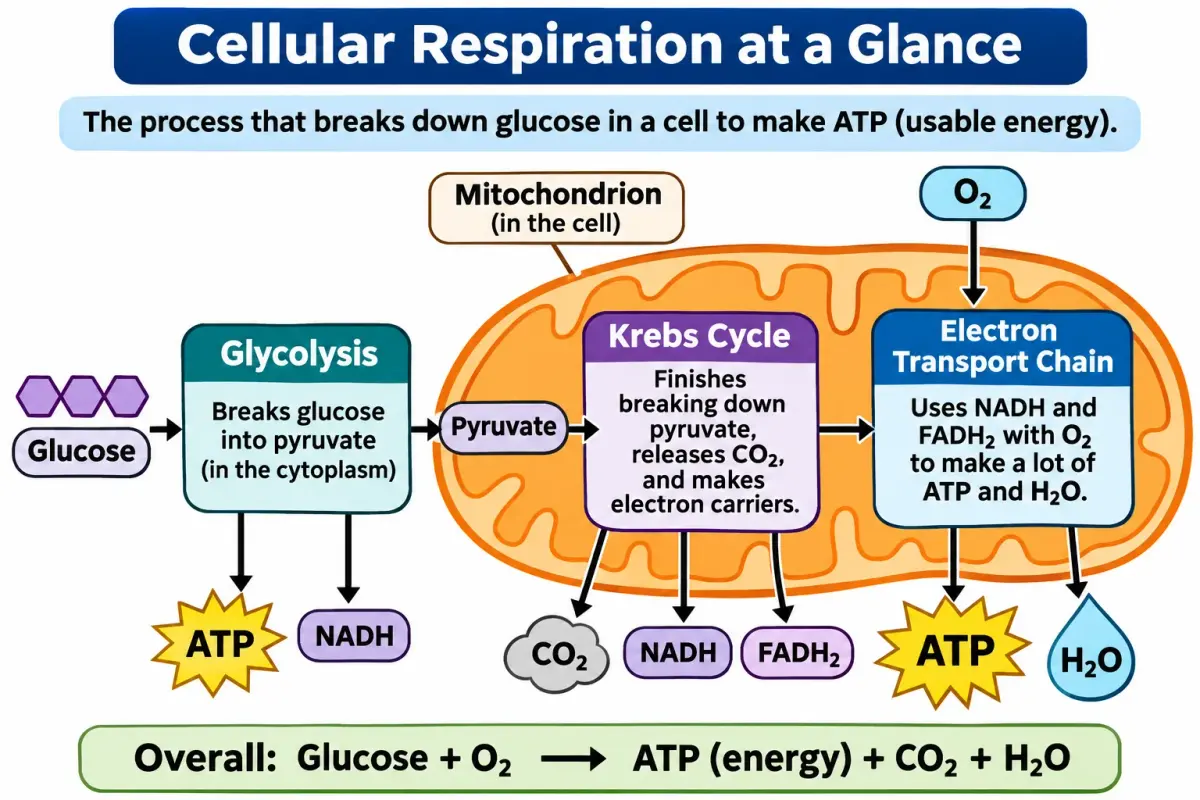
Build a detailed educational diagram
Describe each stage, label and connection to organize a complex explanation. Use planning intensity for a dense layout, then check the science and text before sharing.
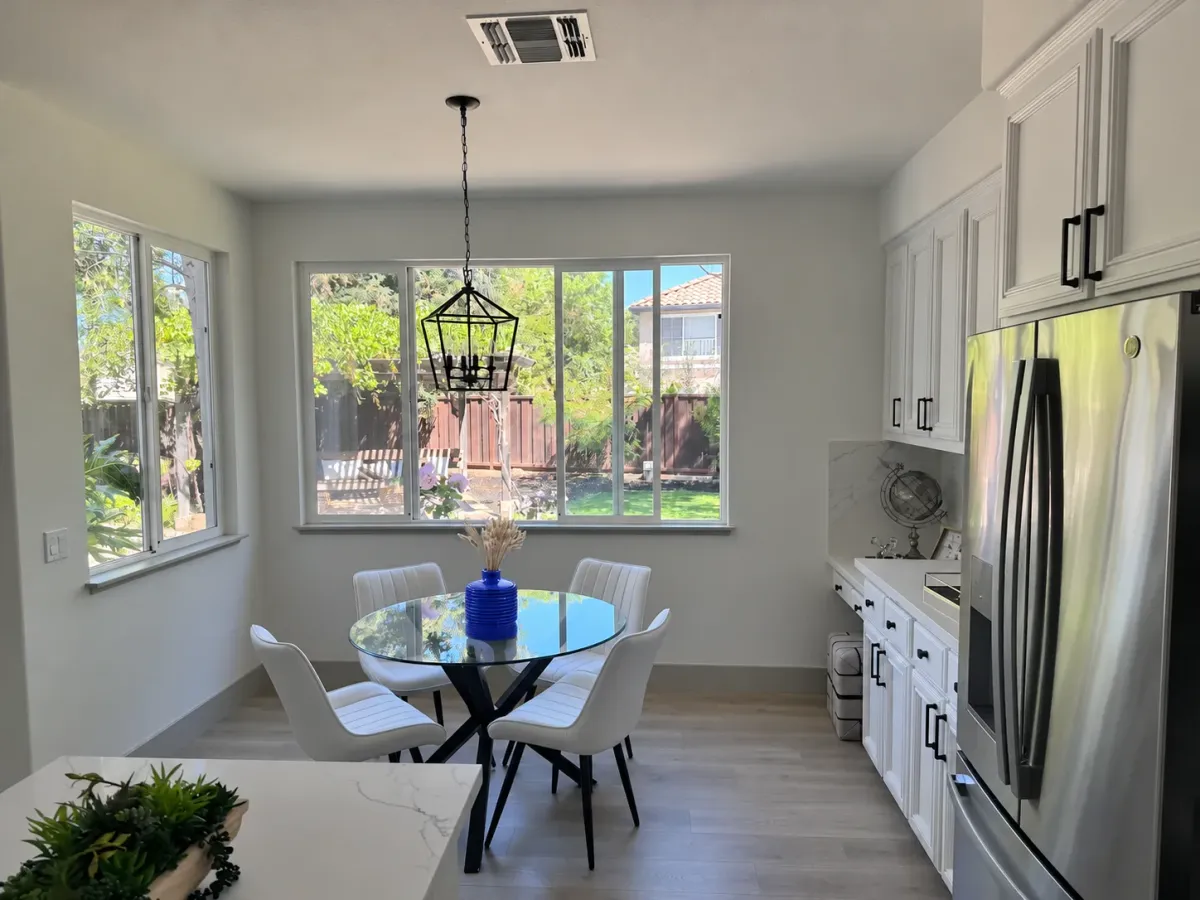
Edit a photo while keeping its setting
Use the AI photo editor to change a vase’s color and material. Tell it to preserve the shape, stems, table and room so the prompt clearly separates the change from the details to retain.

Explore festive product packaging
Bring a vintage red toy airplane, clear blister packaging and Christmas artwork into one product visual. Describe the materials, illustration and lettering to explore a cohesive retail presentation.
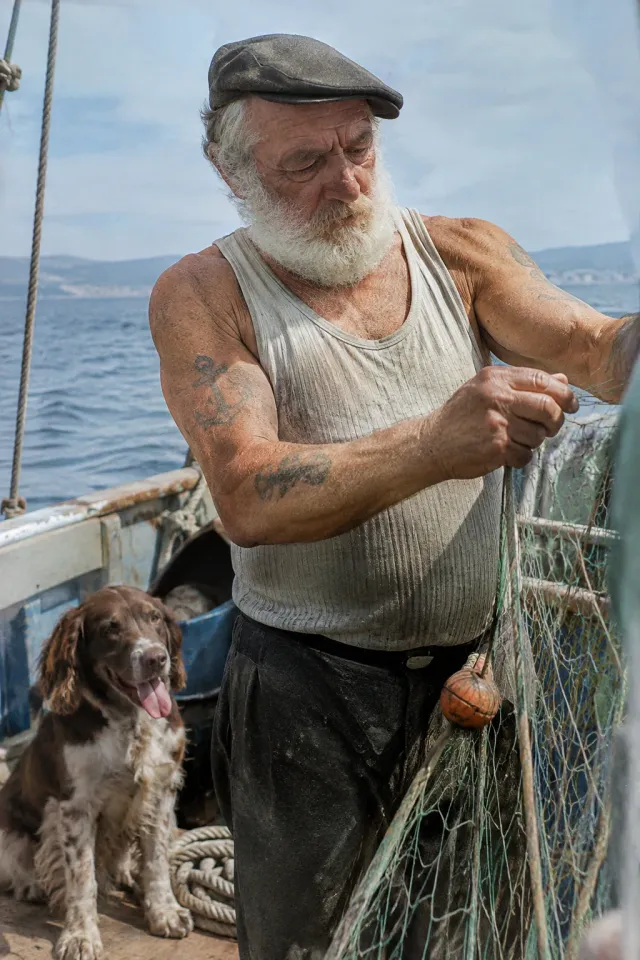
Explore texture and portrait detail
Describe natural light, facial features and clothing textures for a realistic portrait. For image-to-image work, upload a reference and name the features you want the model to retain.
Explore other models
Switch between top image models in one generator.
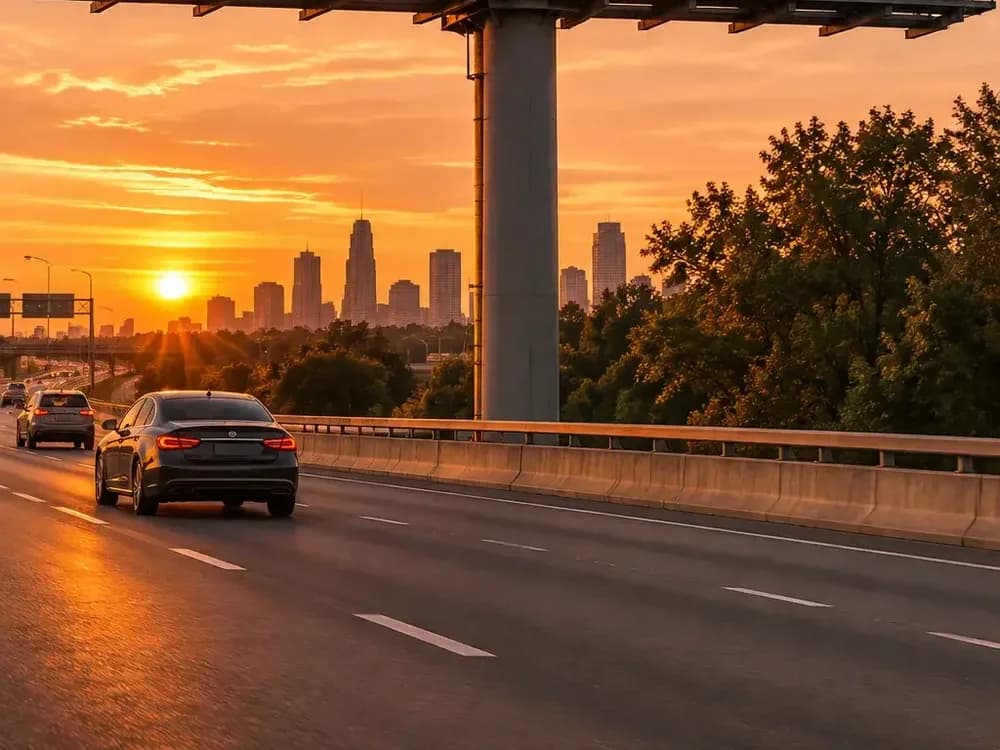 NEW
GPT Image 2.6 Flare
Fast image creation and reference editing with planning control.
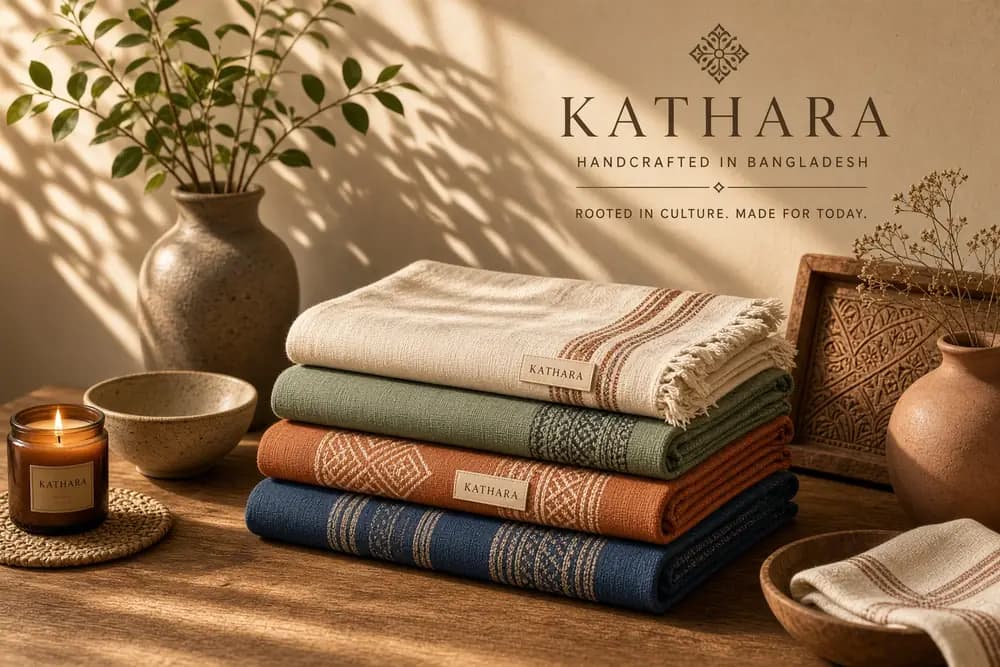
Grok Imagine Image 2.0
1K / 2K image generation and editing with up to 3 references.
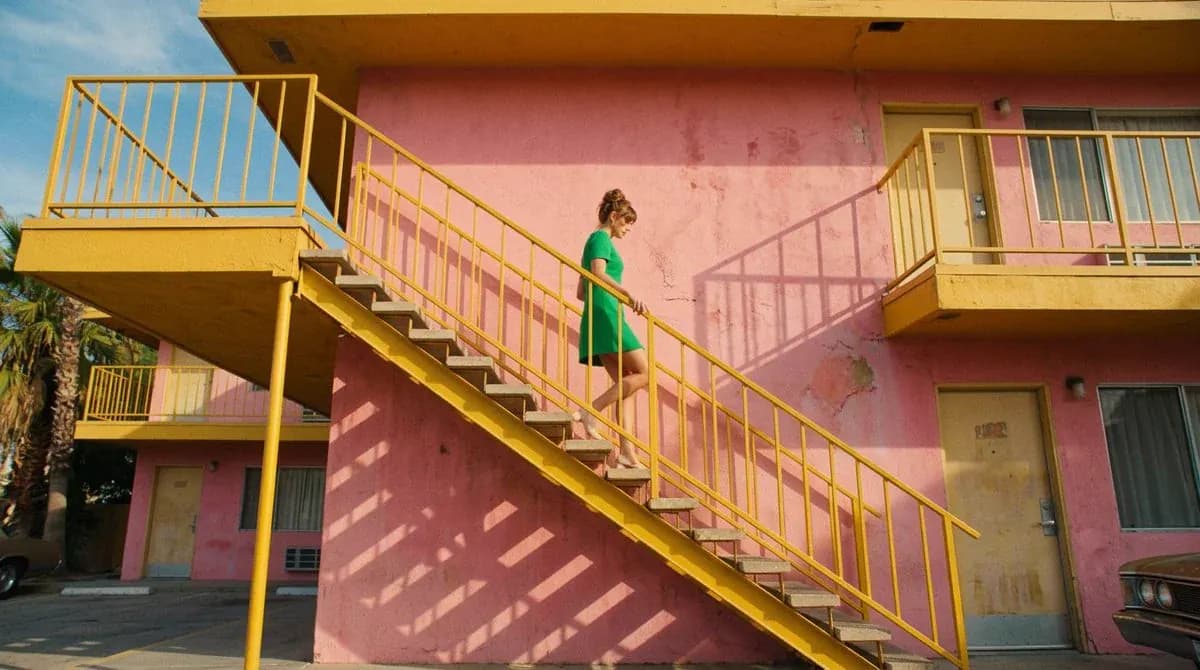
Nano Banana 2.1
Up to 4K, multi-reference editing, web and image search.
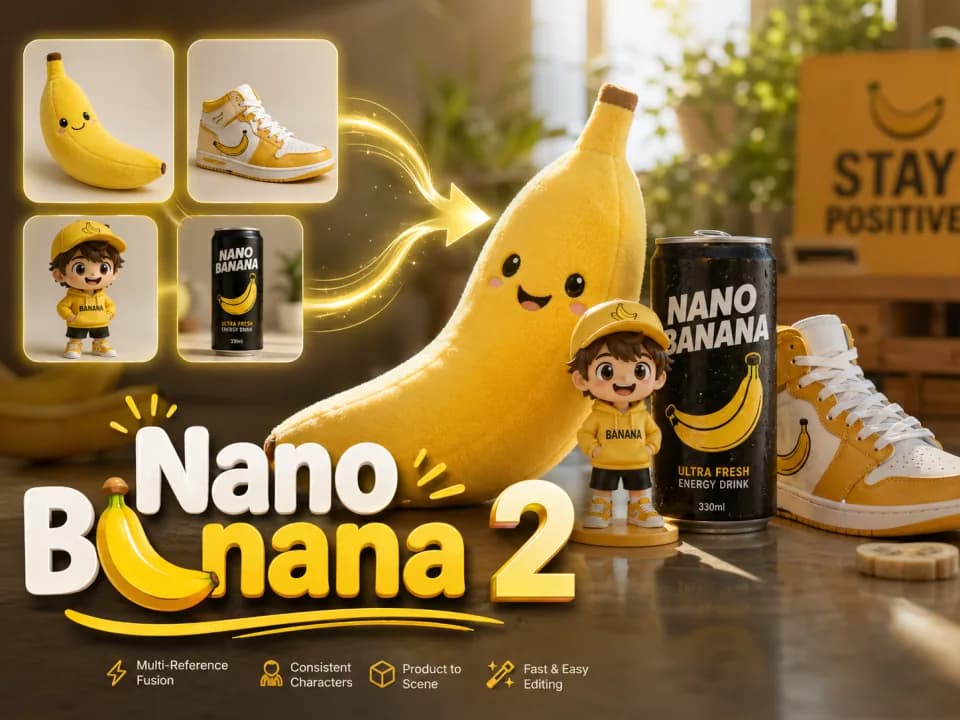
Nano Banana 2
Multi-reference edits with fast style control.
Nano Banana 2 Lite
Fast 1K generation and editing for 11 credits.
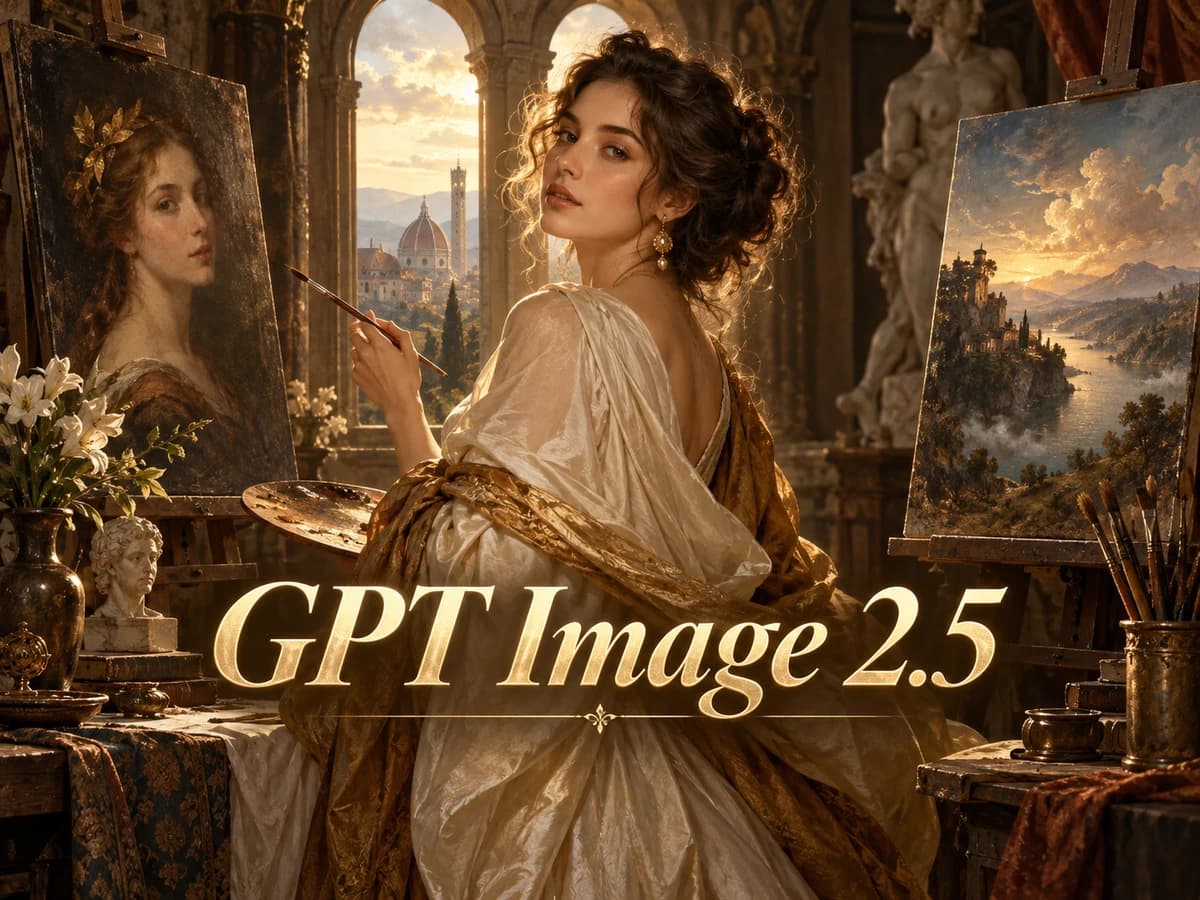
GPT Image 2.5
Flare: fast creation, reference fidelity and natural detail.
Choose your GPT Image model
Controls and credit rules in Raphael.
| Feature | GPT Image 2 | GPT Image 2.5 | GPT Image 2.6 Flare | GPT Image 2.6 Sunburst |
|---|---|---|---|---|
| Resolution | 1K / 2K / 4K | 1K / 2K / 4K | 1K / 2K / 4K | 1K / 2K / 4K |
| Quality | Low / Medium / High | Low / Medium / High / xHigh / Max | Low / Medium / High / xHigh / Max | Low / Medium / High / xHigh / Max |
| Planning intensity | — | — | Low / Medium / High | Low / Medium / High |
| References per output | +3 credits per reference | +3 credits / reference | +3 credits / reference | +3 credits / reference |
| Reference file limit | 50 MiB | 50 MiB | 20 MiB | 20 MiB |
| 1K Medium, no references | From 18 credits, varies by aspect ratio | Prompt-dependent estimate | From 13 credits | From 13 credits |
Review the full quote before generating. Quality names across versions do not imply equal output quality.
Choose Your Plan
Free images include a watermark. Upgrade for clean outputs, faster generation, and commercial use.
Pro
-50%Unlimited Model Benefits
 Seedream 3.5Unlimited
- Seedream 3.5 ProUnlimited Not Included
 MiniMax H3 TurboUnlimited Not Included
- MiniMax H3Unlimited Not Included
- Upgrade to unlock all advanced models and enjoy exclusive discountsMiniMax-70%
 Gemini
 Nano
 GPT-50%Seedream-40%Veo
 Seedance
 Kling
 Grok
 Wan
- 2,000 credits per month
- Up to 2,000 fast images
- Up to 200 basic videos
- Priority queue
- No watermarks
- Batch processing with AI tools
- Full privacy
Ultimate
-50%Unlimited Model Benefits
- Seedream 3.5Unlimited
- Seedream 3.5 ProUnlimited
- MiniMax H3 TurboUnlimited Not Included
- MiniMax H3Unlimited Not Included
- Upgrade to unlock all advanced models and enjoy exclusive discountsMiniMax-70%GeminiNanoGPT-50%Seedream-40%VeoSeedanceKlingGrokWan
- 5,000 credits per month
- Up to 5,000 fast images
- Up to 500 basic videos
- Highest priority queue
- No watermarks
- Batch processing with AI tools
- Full privacy
Max
-50%Unlimited Model Benefits
- Seedream 3.5Unlimited
- Seedream 3.5 ProUnlimited
- MiniMax H3 TurboUnlimited
- MiniMax H3Unlimited
- Upgrade to unlock all advanced models and enjoy exclusive discountsMiniMax-70%GeminiNanoGPT-50%Seedream-40%VeoSeedanceKlingGrokWan
- 10,000 credits per month
- Up to 10,000 fast images
- Up to 1,000 basic videos
- Highest priority queue
- No watermarks
- Batch processing with AI tools
- Full privacy
GPT Image 2.6 Sunburst FAQ
Photo editing prompts, reference images, output controls and credits.
How do I use the GPT photo editor?
Upload a photo, describe the changes and specify what should stay the same. Choose your output settings, review the credits and generate. You can also leave references empty and create an image from text. Generate 1–4 outputs per request; the default is one. Raphael uses its own account and credits, separate from ChatGPT.
How does Sunburst differ from Flare and earlier GPT Image models?
OpenAI positions Sunburst for detailed visual work and greater consistency across edits at Medium or High quality, while Flare emphasizes fast iteration. Both generate and edit images. The comparison table above also shows the controls and credit rules for GPT Image 2 and GPT Image 2.5 in Raphael.
Which photos and reference images can I upload?
Upload up to 16 JPG, PNG or WebP images, each up to 20 MiB (20,971,520 bytes). With multiple references, explain which image supplies the subject, setting or style.
Can I use ChatGPT prompts for photo editing here?
Yes, you can reuse the written instructions and upload the relevant photo in Raphael. Name the object to change, describe the desired result and list the details to preserve. For example: “Make the vase cobalt blue; keep its shape, the stems, table and room.” Prompts support up to 10,000 characters, including emoji.
What resolution and image quality are available?
Choose 1K, 2K or 4K and Low, Medium, High, xHigh or Max quality. Defaults: 1K and Low.
How does planning intensity affect image editing?
Planning intensity controls how much planning goes into the requested changes. Low can suit a focused edit; High can help with complex layouts, text and relationships. It is independent of image quality, defaults to Low and has no separate credit fee.
Can image-to-image keep the original aspect ratio?
Choose Auto after uploading references to follow the first image’s aspect ratio. You can also select a different ratio. Text-to-image defaults to 1:1 and offers 15 aspect ratios.
How many credits do image generation and references cost?
A 1K Low image without references starts at 8 credits. Each reference adds 3 credits per output image. Review the full price before generating.