AI Pose Changer: Before and After

See how the same person looks in different poses, from selfies to street style photos.

Change a Selfie Pose and Keep the Person Recognizable

Use the AI photo pose changer to give an existing selfie a new pose. Here, an upright selfie becomes a closer, more candid shot, with the person's face, outfit, and headphones still recognizable.

Sitting on the bed for a mirror selfie with headphonesReference pose
Reclining and touching the headphones during a mirror selfieExample pose

Describe a Custom Pose and Hand Positions

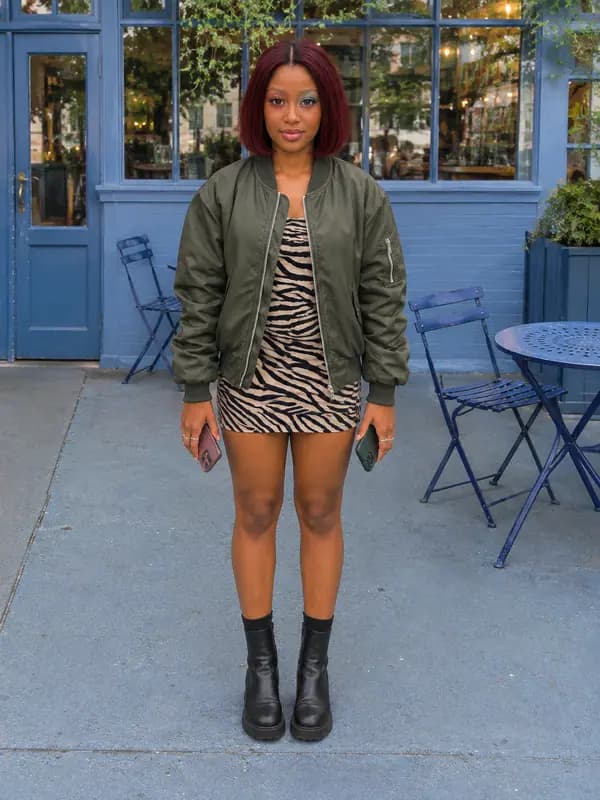
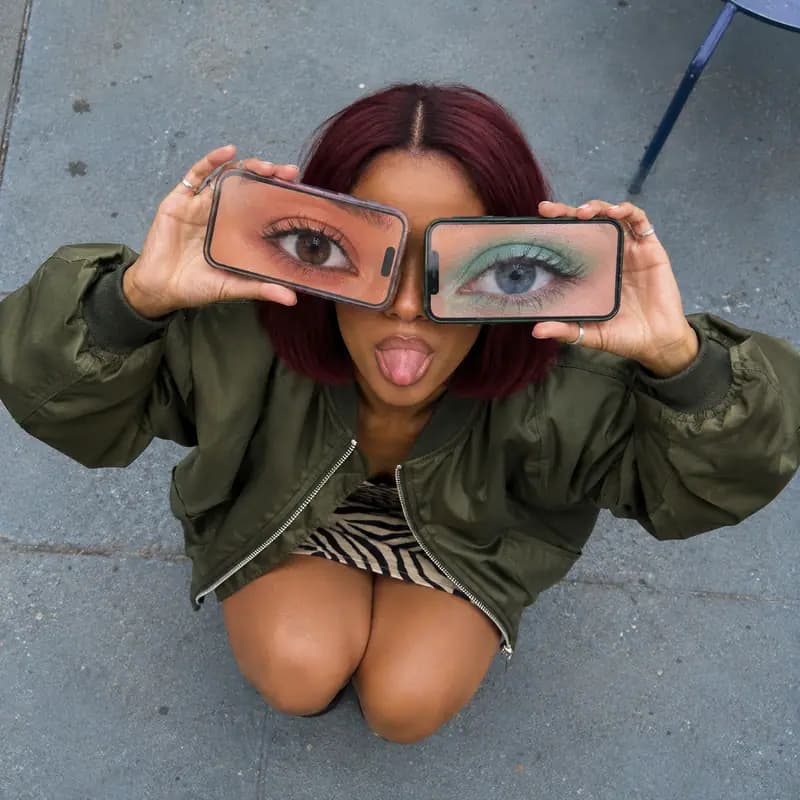
Describe what the person does and where their hands go. Here, the person crouches, looks up, sticks out their tongue, and holds a phone over each eye.

Standing face on with one phone in each lowered handReference pose
Overhead view of a crouching pose with two phones covering the eyesExample pose

Change the Pose in a Full-Body Outfit Photo

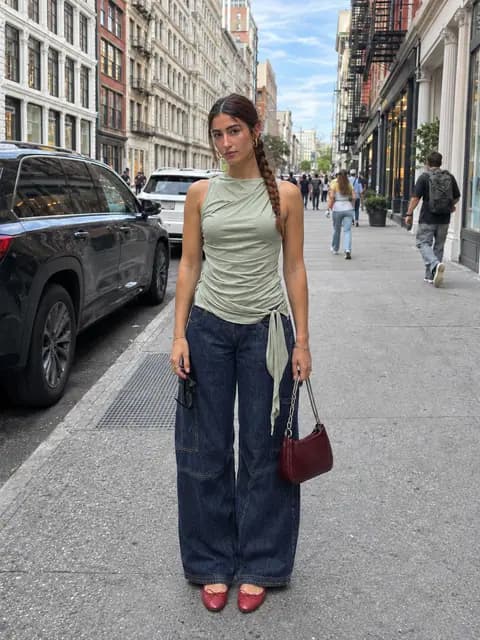
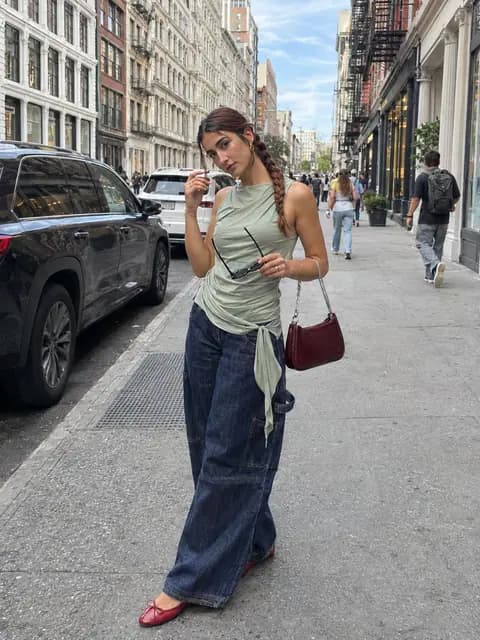
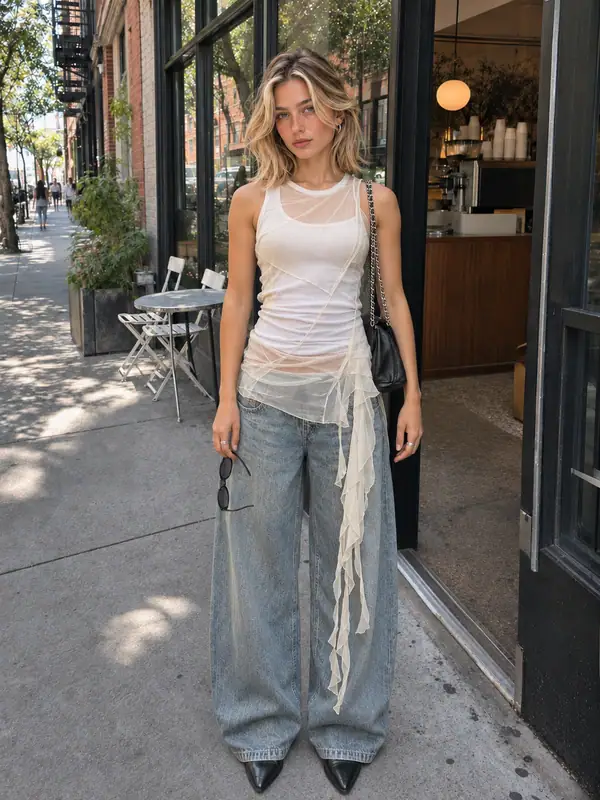
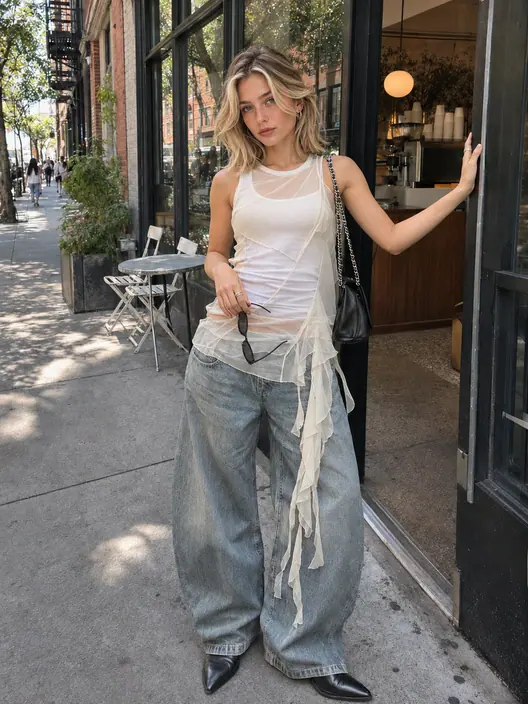
Change the pose in a full-body photo to give a fashion shot more movement. Here, a slight turn and a raised hand make the street portrait feel more candid while keeping the outfit and sunglasses in view.

Standing naturally on the street with sunglasses held at one sideReference pose
Turning slightly and brushing the hair while holding sunglasses on the streetExample pose

How to Change the Pose in a Photo

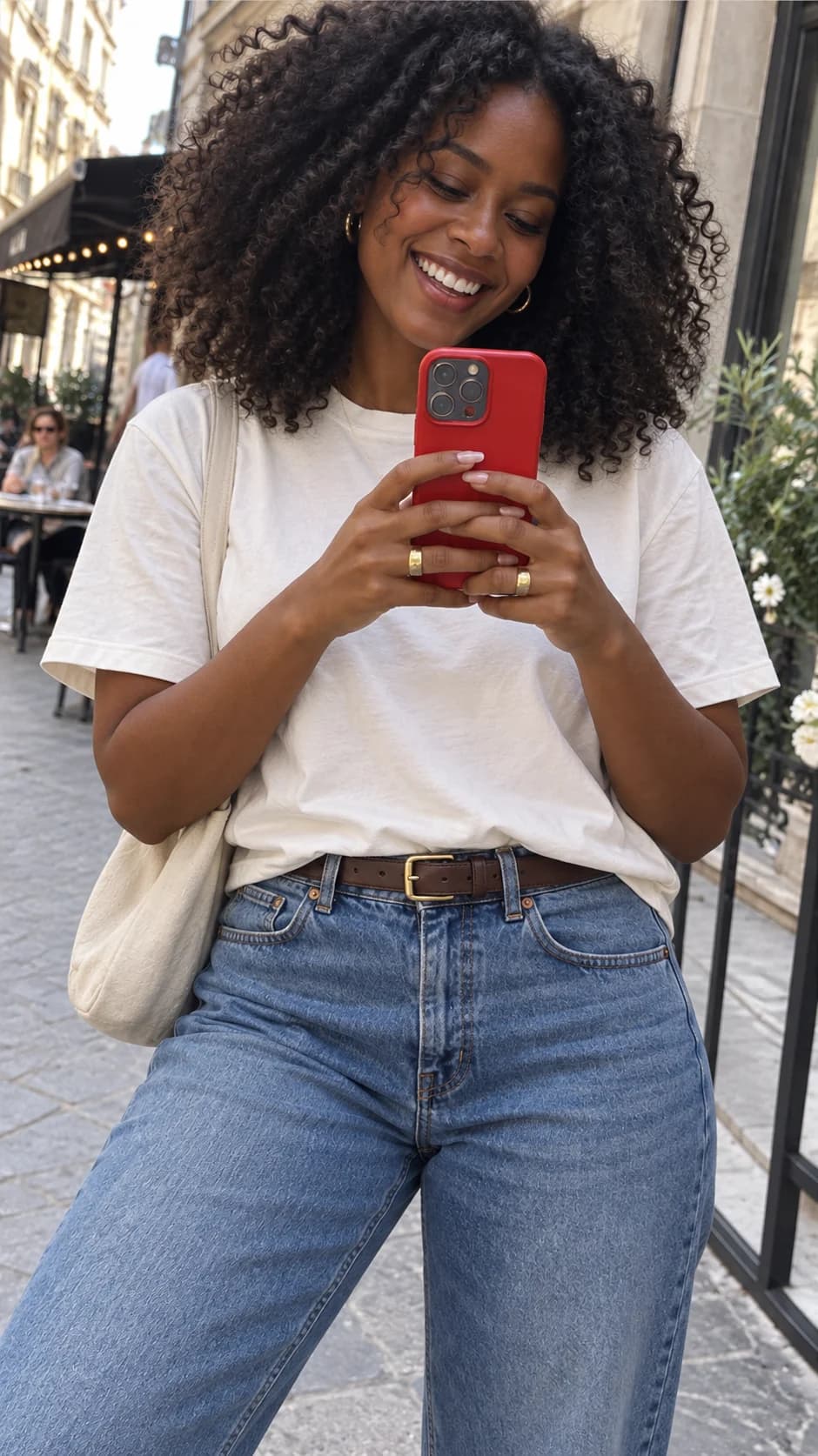
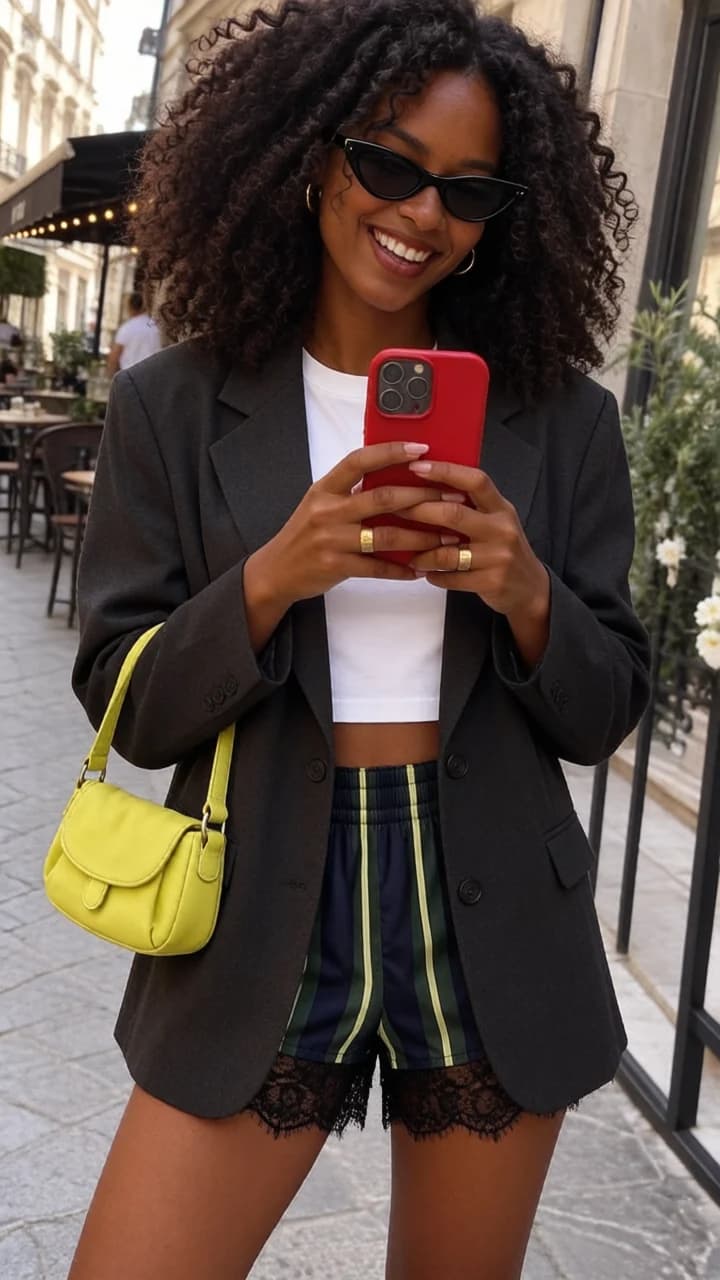
Start with a standing portrait and use the café doorway example to see how to choose a more relaxed pose.

  1. Upload a photo

    Upload a clear photo of one person. For a full-body pose, keep the hands and feet in the frame.

  2. Choose a pose

    Choose Side Lean under Fashion Poses, or describe the body position, hand and foot placement, and gaze under Custom.

  3. Generate and download

    Select Generate, then check the pose before saving the image.

From One Photo to a New Pose

Use one photo to try a natural walk, a relaxed sitting pose, or a pose that shows how a product is held.

50 Preset Poses

Browse four categories: Fashion Poses, Product Showcase, Clothing Details, and Accessories.

Keep the Person Recognizable

The AI photo pose changer uses your original image as a reference for the person's face, hair, and outfit.

Product Showcase Poses

Add an optional product photo to a compatible preset, such as holding a bottle at chest height or wearing a watch.

Describe a Custom Pose

Write the pose in your own words, such as “sit on the steps, rest one hand on your knee, and look away from the camera.”

Full-Body Fashion Poses

Try walking, looking back, or leaning into a chair to show how an outfit looks in different poses.

Clothing and Accessory Details

Sweep hair aside, pinch a garment's hem, or adjust glasses to bring out clothing and accessory details.
Choose Your Plan

Free images include a watermark. Upgrade for clean outputs, faster generation, and commercial use.

AI Pose Generator FAQ

Tips for choosing a photo, describing a pose, and adding a product image.

1

How do I change the pose in a photo with AI?

Upload a photo of the person, then select a preset or switch to Custom to describe the pose. For a full-body portrait, try a preset like Natural Walk, Side Lean, or Chair Sitting.

2

What kind of photo works best?

Use a clear, well-lit photo of one person with their face visible. For a full-body pose, choose an image that shows the whole person, including their hands and feet.

3

How do I write a prompt for a custom pose?

Start with the action, then add hand and foot placement and gaze. Try “Sit sideways on a stool, hold the brim of your cap with one hand, and look out the window.”

4

Can I add a product image?

Yes. When you select a Product Showcase or Accessories preset, you can add a product photo as a reference for what the person holds or wears. For a regular portrait pose, the person photo is enough.

5

Will it change my face or outfit?

The tool uses the original face and outfit as references. Changing the pose can redraw parts of the image, so facial details, fabric folds, and the background may vary slightly.

6

Can I choose the aspect ratio of my photo?

Yes. Use the aspect ratio selector next to Generate. Try 3:4 for full-body outfit photos or 1:1 for square social posts. If you’re unsure, keep the automatic setting.

Continue editing your image

Continue your workflow with another Raphael image tool.

Raphael AI

Try a New Pose for Your Photo

AI Pose Generator

Use AI to give your photo a new pose without a reshoot.