

Free AI Image Editor
Edit images with text. Replace backgrounds, remove objects, or change text in your photos.
Pick an image and try AI editing
Edit list
Upload an image to start editing.
More image tools
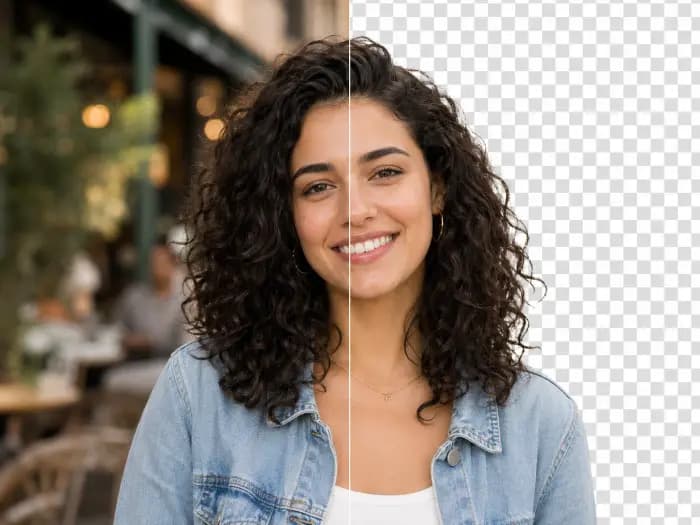
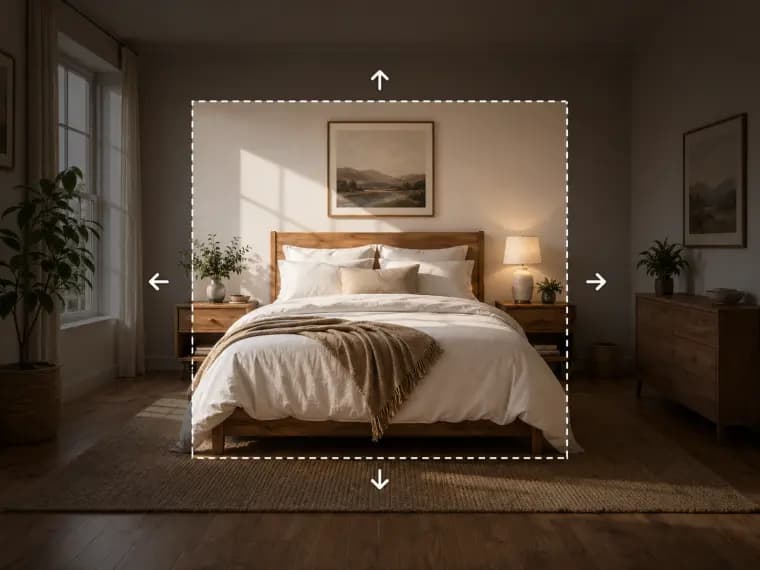
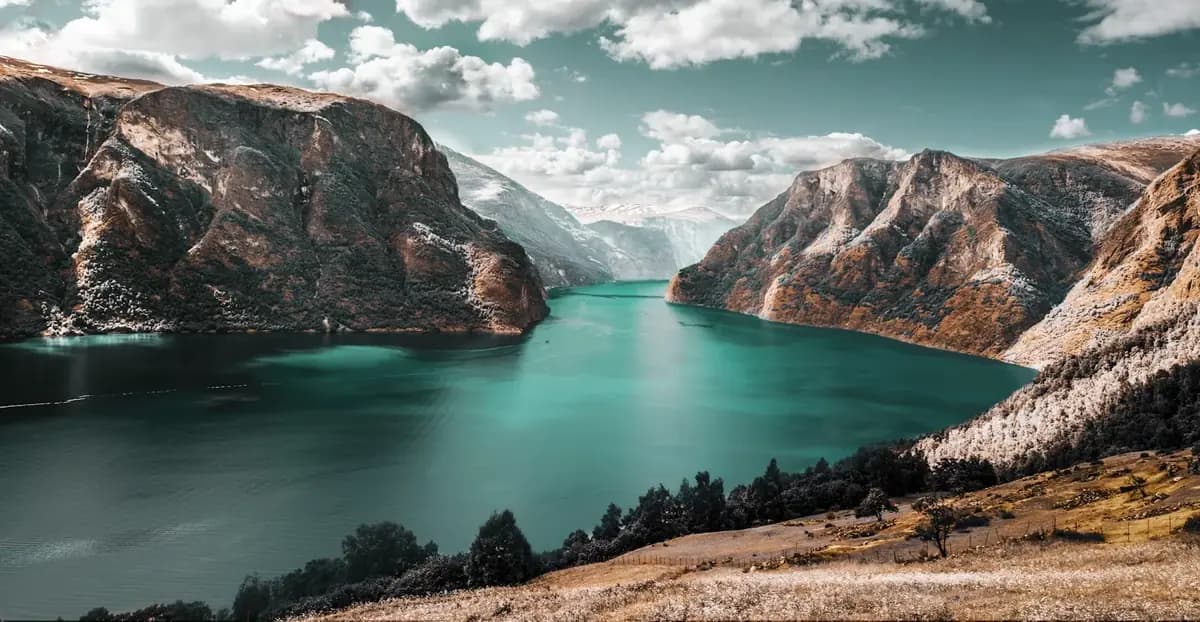
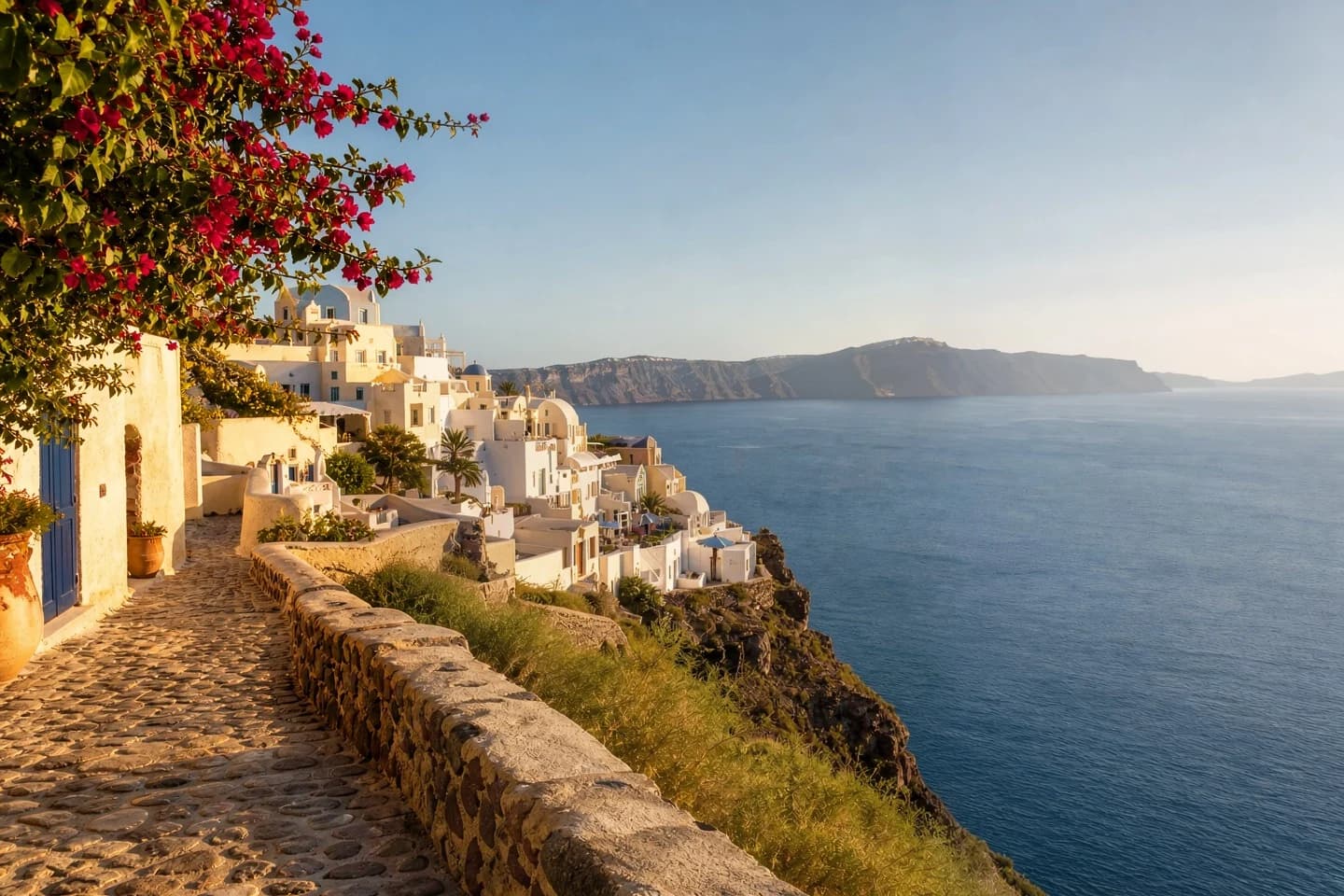
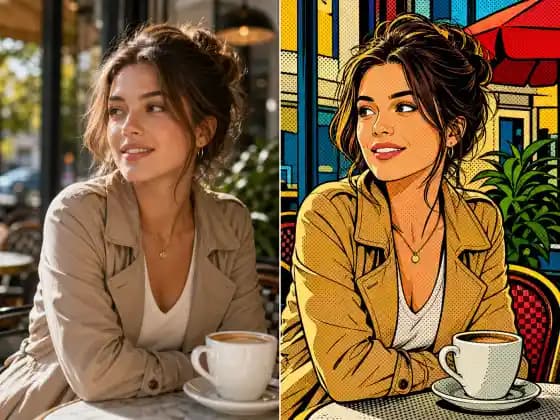
AI Photo Editing: Before and After
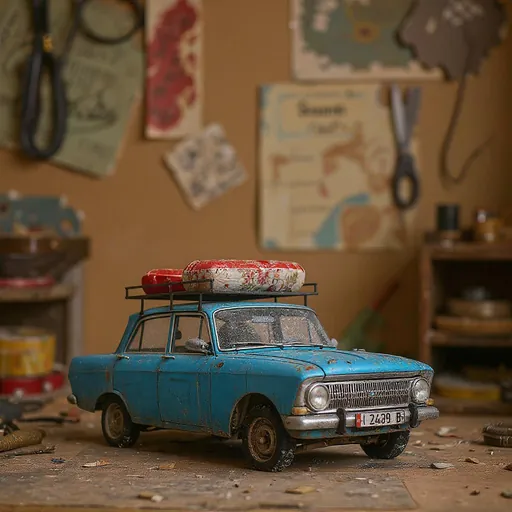
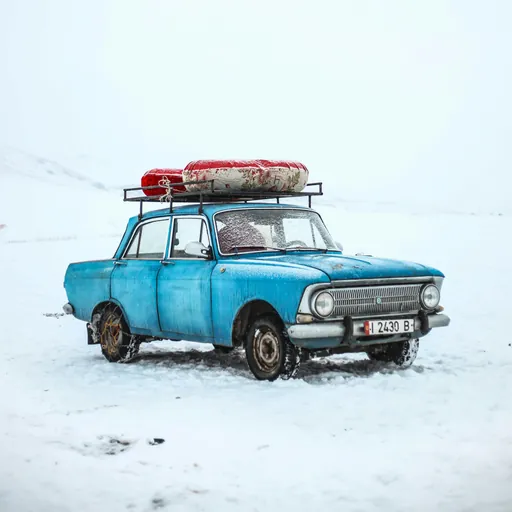 Before
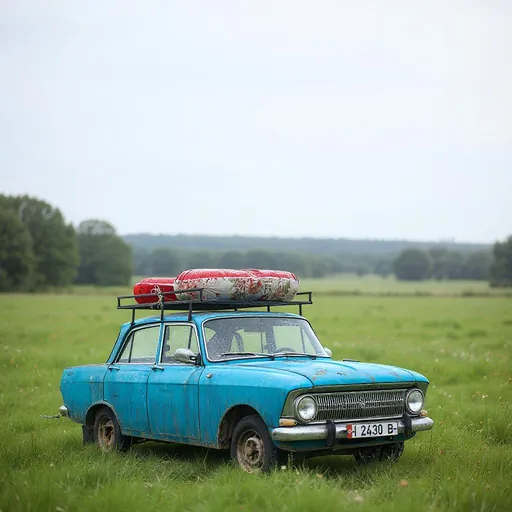 After
After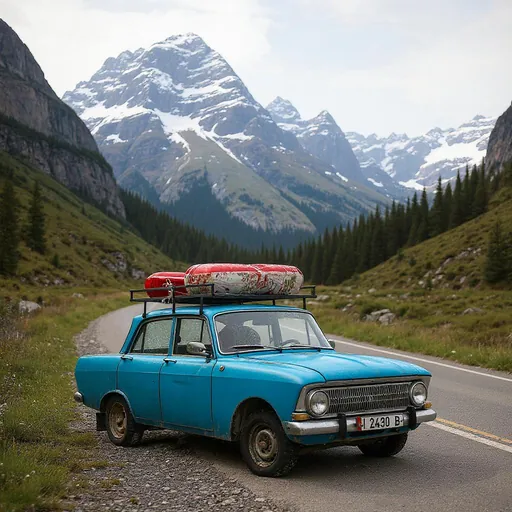
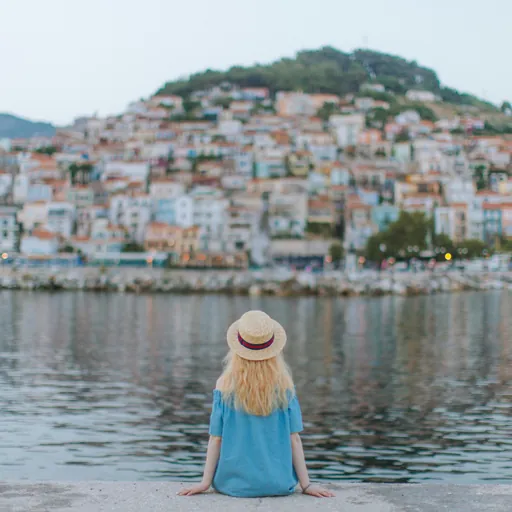
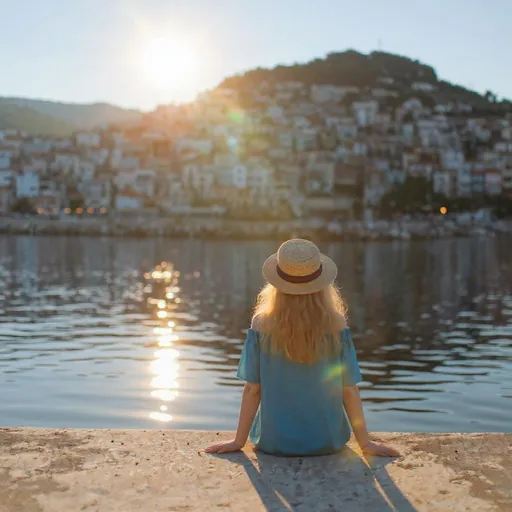
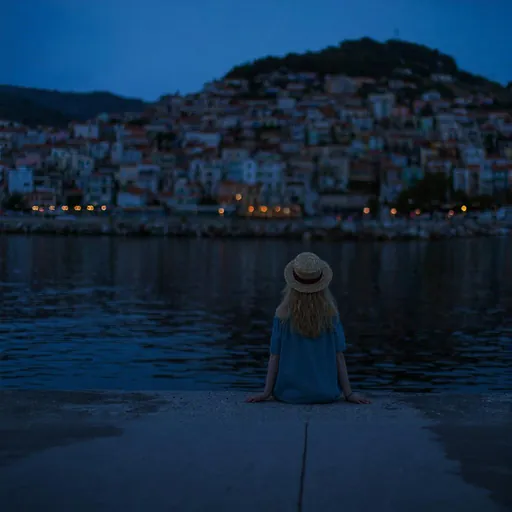
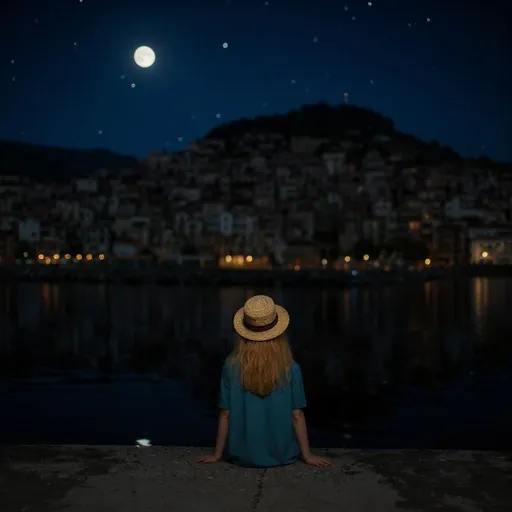
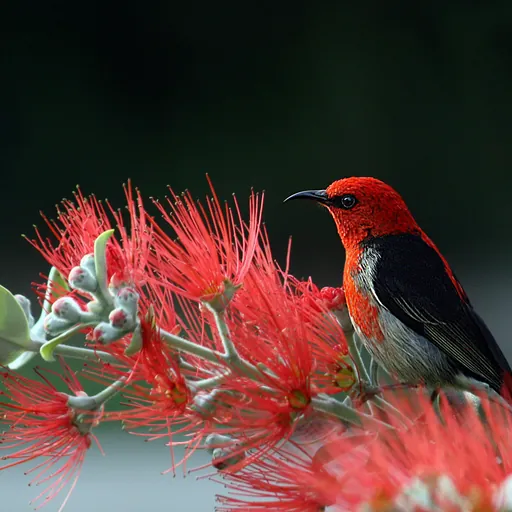
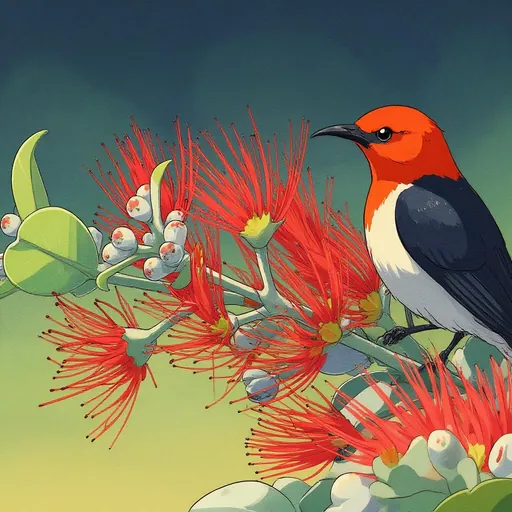
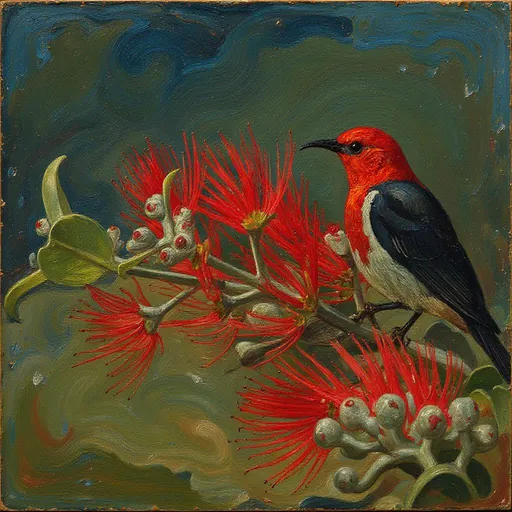
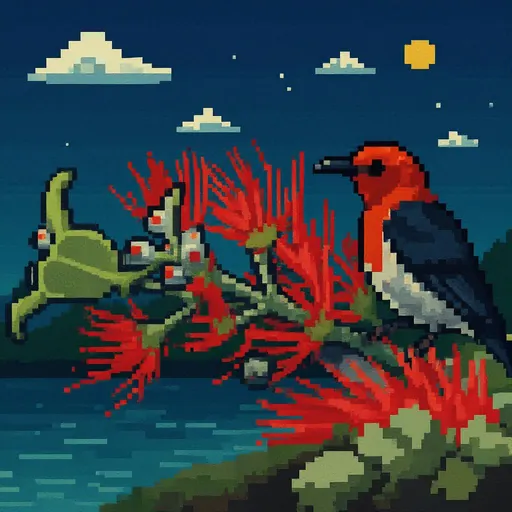
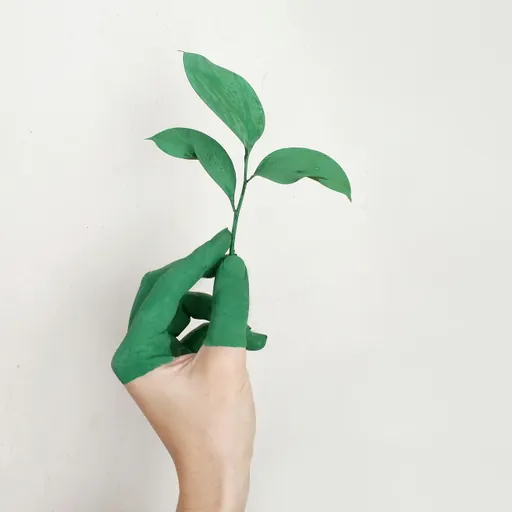
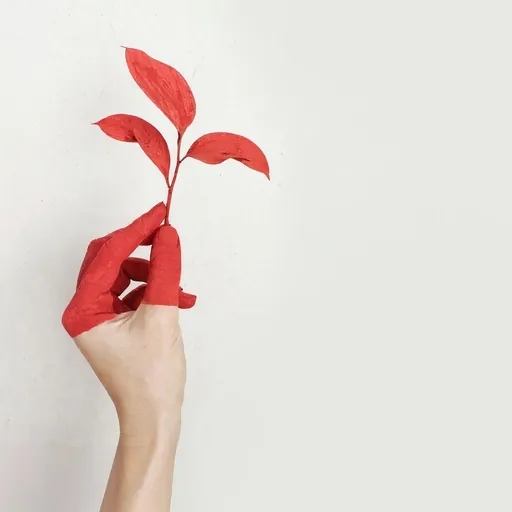
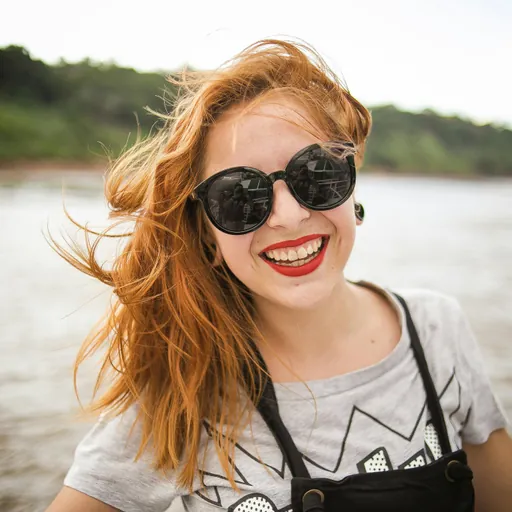
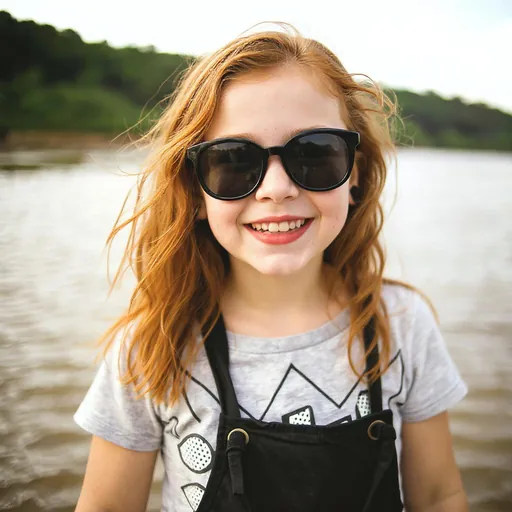
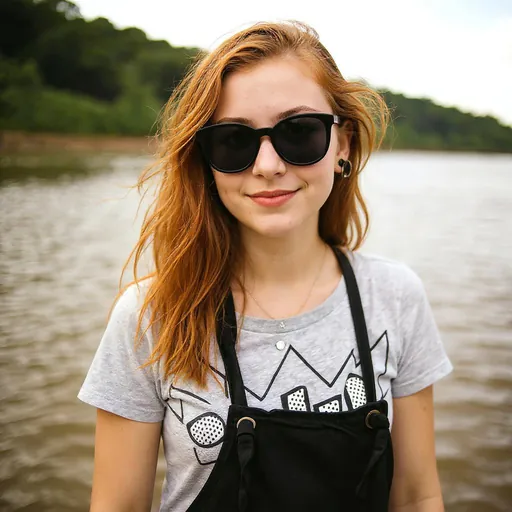
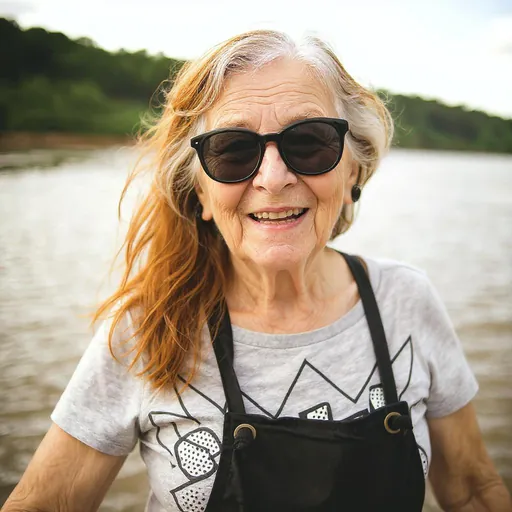
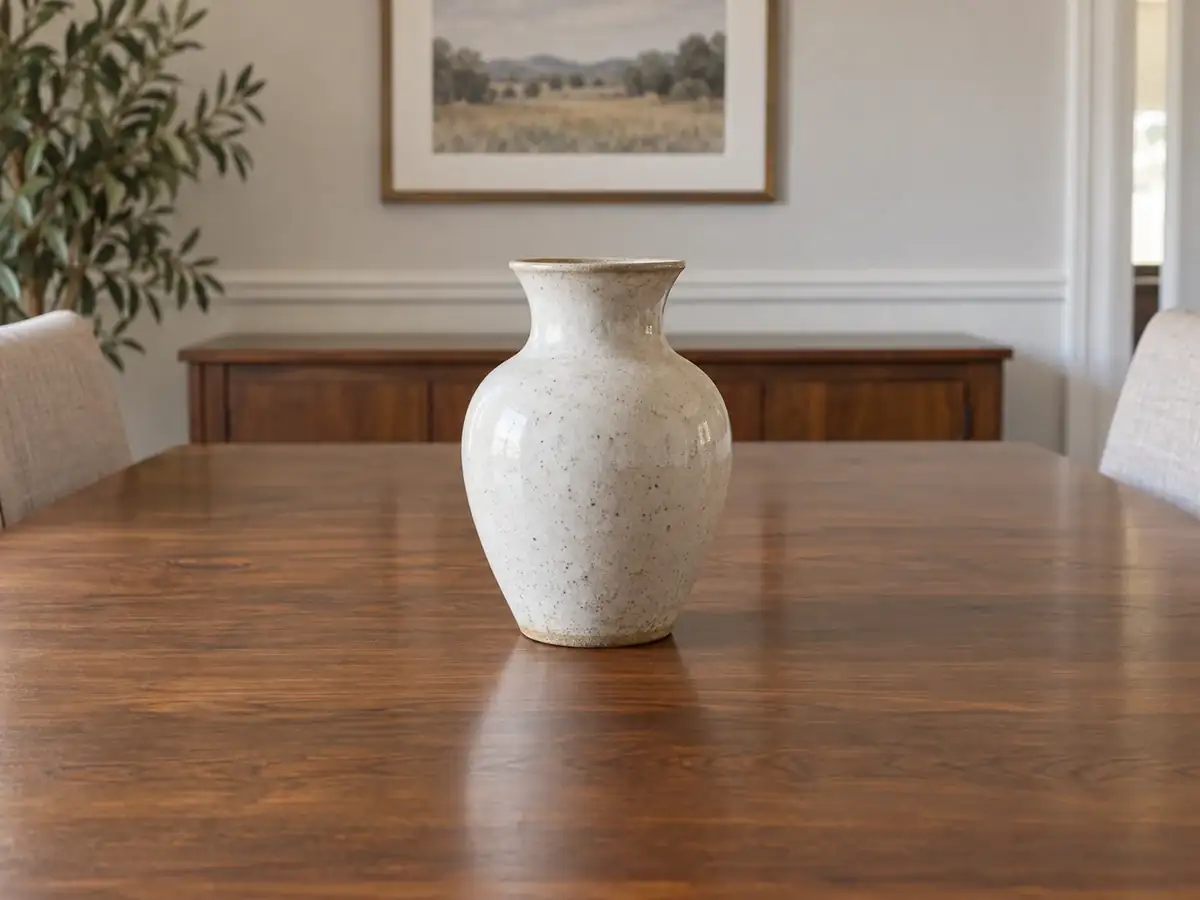
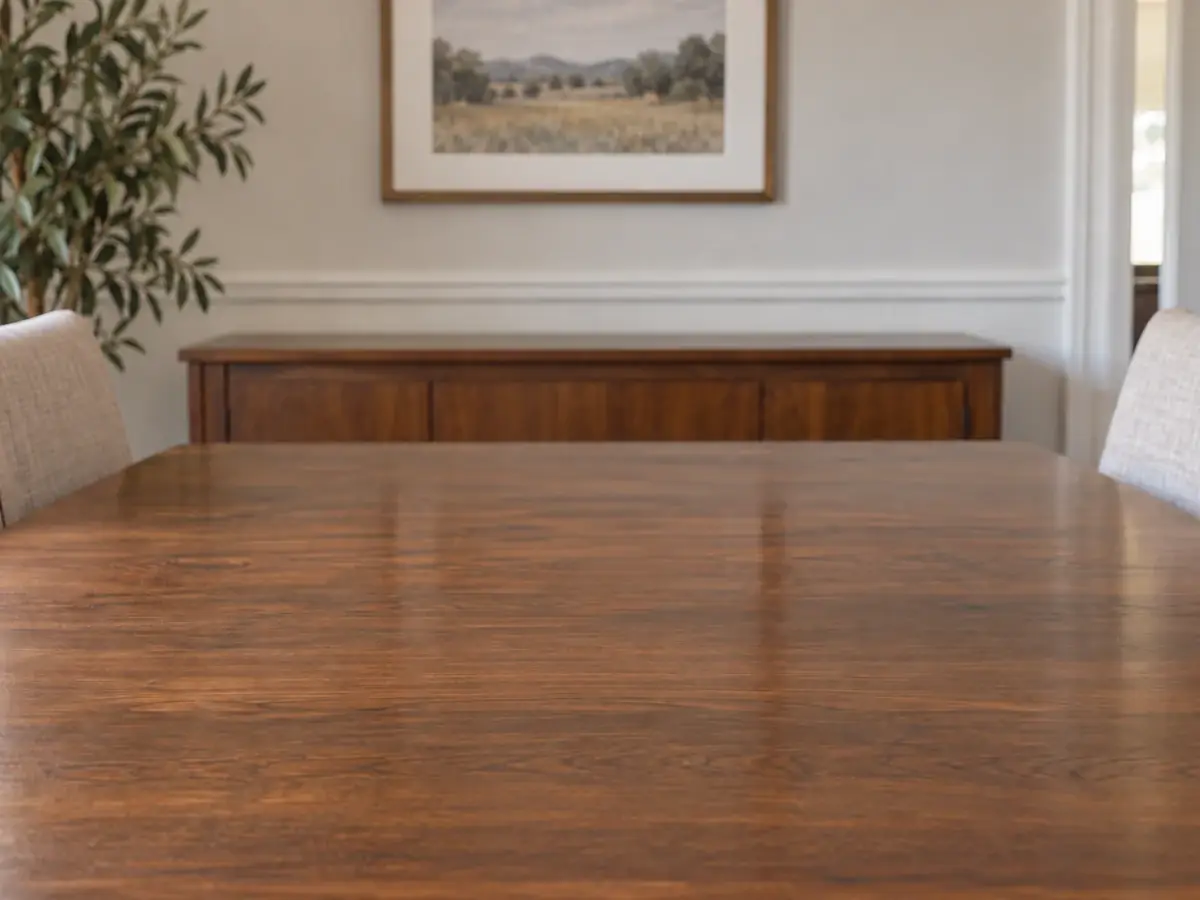




Background Replacement
Change background to a vast grassland
AI Image Editing Tools for Every Task
Edit photos online with text to replace backgrounds, remove objects, or change words in an image. For focused tasks, use our background remover, image extender, upscaler, watermark remover, or local editor.
AI Photo Editor: Edit Images with TextTry
Use image-to-image AI to upload a reference photo and describe the edit in plain language. Change colors, remove objects, or transfer an art style while keeping the parts you like.
AI Background ChangerTry
Change a photo background with a text prompt. Try a clean studio backdrop, an outdoor scene, or a new setting while keeping the main subject.
Remove Objects from Photos with AITry
Remove an unwanted object, person, or distraction from a photo. Describe the change in the AI photo editor, or select the area for a more precise edit.
Edit Text in Images with AITry
Use the text editing mode to change words in a poster, screenshot, or design. Describe the replacement and review the result before downloading.
AI Background RemoverTry
Remove an image background online and create a transparent cutout for product photos, portraits, and design assets.
AI Image Extender and Uncrop ToolTry
Extend a photo beyond its original borders. Add space around the subject and fit a wider or taller layout without stretching the image.
AI Image UpscalerTry
Upscale a photo or illustration by 2× or 4×, with output up to 4K. Make small images suitable for larger screens and downloads.
AI Watermark RemoverTry
Remove visible watermarks from images you own or have permission to edit, and clean up the area left behind.
AI Inpainting and Local Image EditorTry
Brush over one area and describe what should change. Use AI inpainting to edit a specific object or detail while keeping the rest of the photo in place.
Choose Your Plan
Free images include a watermark. Upgrade for clean outputs, faster generation, and commercial use.
Pro
-50%Unlimited Model Benefits
 Seedream 3.5Unlimited
- Seedream 3.5 ProUnlimited Not Included
 MiniMax H3 TurboUnlimited Not Included
- MiniMax H3Unlimited Not Included
- Upgrade to unlock all advanced models and enjoy exclusive discountsMiniMax-70%
 Gemini
 Nano
Nano GPT-50%Seedream-40%Veo
 Seedance
 Kling
Kling Grok
Grok Wan
Wan - 2,000 credits per month
- Up to 2,000 fast images
- Up to 200 basic videos
- Priority queue
- No watermarks
- Batch processing with AI tools
- Full privacy
Ultimate
-50%Unlimited Model Benefits
- Seedream 3.5Unlimited
- Seedream 3.5 ProUnlimited
- MiniMax H3 TurboUnlimited Not Included
- MiniMax H3Unlimited Not Included
- Upgrade to unlock all advanced models and enjoy exclusive discountsMiniMax-70%GeminiNanoGPT-50%Seedream-40%VeoSeedanceKlingGrokWan
- 5,000 credits per month
- Up to 5,000 fast images
- Up to 500 basic videos
- Highest priority queue
- No watermarks
- Batch processing with AI tools
- Full privacy
Max
-50%Unlimited Model Benefits
- Seedream 3.5Unlimited
- Seedream 3.5 ProUnlimited
- MiniMax H3 TurboUnlimited
- MiniMax H3Unlimited
- Upgrade to unlock all advanced models and enjoy exclusive discountsMiniMax-70%GeminiNanoGPT-50%Seedream-40%VeoSeedanceKlingGrokWan
- 10,000 credits per month
- Up to 10,000 fast images
- Up to 1,000 basic videos
- Highest priority queue
- No watermarks
- Batch processing with AI tools
- Full privacy
Frequently Asked Questions
Clear answers about editing photos with AI, image uploads, credits, downloads, and privacy.
What can Raphael AI Photo Editor do with an existing image?
Upload a photo and use image-to-image AI to change it with a text instruction. You can replace a background, remove an object, change text in an image, adjust its style, or edit a selected area. Review each result, since AI edits can vary.
How do I edit a photo with AI using a text prompt?
Upload an image, choose the editing mode, and describe both what to change and what to keep. For example: “Keep the person and clothing, but change the background to a sunset beach.” Check the preview and refine the prompt if needed.
How do I change a photo background with AI?
Use the general editing mode and describe the new setting, such as a studio backdrop or outdoor scene. Mention the subject you want to keep. If you only need a transparent cutout, use the dedicated AI Background Remover instead.
How can I remove an object or person from a photo?
Choose the local removal mode, mark the unwanted area, and submit the edit. You can also describe the object in a general text prompt. The AI rebuilds the surrounding area, so check the result and try a tighter selection if needed.
Can I change text in an image with AI?
Yes. Select the text editing mode, upload the image, and enter the replacement words. Review the generated image carefully, especially spelling and small lettering, before downloading or using it.
How do I edit only one part of a photo with AI?
Use local editing to brush over the area you want to change, then describe the new object or detail. Local removal is useful when you want to erase something. This AI inpainting workflow aims to keep the rest of the photo, but always review the final image.
Can I use the AI image editor for free, and do I need to sign in?
You can upload a photo and prepare your edit before signing in. An account is required to submit an AI editing task. If your account has free credits, you can use eligible models within that balance; the available credits and cost are shown in the product.
Which image formats and file sizes can I upload?
JPG, PNG, and WebP are common supported inputs. Images uploaded through the AI photo editor must be no larger than 20 MB each. A selected model may have additional format or size rules, so check any upload message shown in the editor.
How many credits does an AI photo edit use?
The credit estimate depends on the model and settings you select. Check the amount shown before each edit; your account also shows your available credits and plan benefits. A new edit or retry can have its own cost.
How long does AI photo editing take, and will I wait in a queue?
Processing time varies with the model, image settings, and current demand. Some free or slow tasks may wait in a queue. The editor shows task progress or a waiting message when applicable, so there is no fixed completion time for every edit.
What can I do if the first AI edit is not right?
Make the instruction more specific, say what must stay unchanged, or select a smaller area for local editing. You can then generate another result. Check the displayed credit estimate before submitting a new attempt.
Will my AI-edited photo have a watermark?
Free-plan downloads of ordinary AI-edited images may include a watermark. Watermark-free downloads depend on your plan benefits and the option shown at download time. The separate AI Watermark Remover removes marks already present in an image; it is a different task.
How long are my uploaded photos and edited results saved?
Signed-in users can review available uploads and results in generation history. These files expire under the current data-retention policy, so download anything you want to keep. See the Privacy Policy for details about how account and media data are handled.
Can I use an AI-edited image commercially?
Paid subscribers may use generated content commercially, subject to Raphael’s Terms of Service and applicable law. Free users may use it for personal and other non-commercial purposes unless Raphael expressly states otherwise. Make sure you have the rights to the source image and any material in the result.
What resolution and file format can I download?
Available resolution depends on the selected model and settings; not every model offers 2K or 4K output. The download uses the available format of the finished result. Check the options shown before generating, or use the Image Upscaler when you need a larger image.
When should I use the dedicated background, expand, upscale, or watermark tools?
Use AI Background Remover for a transparent cutout, Image Extender to add space beyond the frame, Image Upscaler to enlarge a picture, and AI Watermark Remover for marks in an image you may edit. Use the AI Photo Editor when you want a prompt-driven change to the image itself. The tool links are in the feature section above.