Preview a Modern Room Makeover
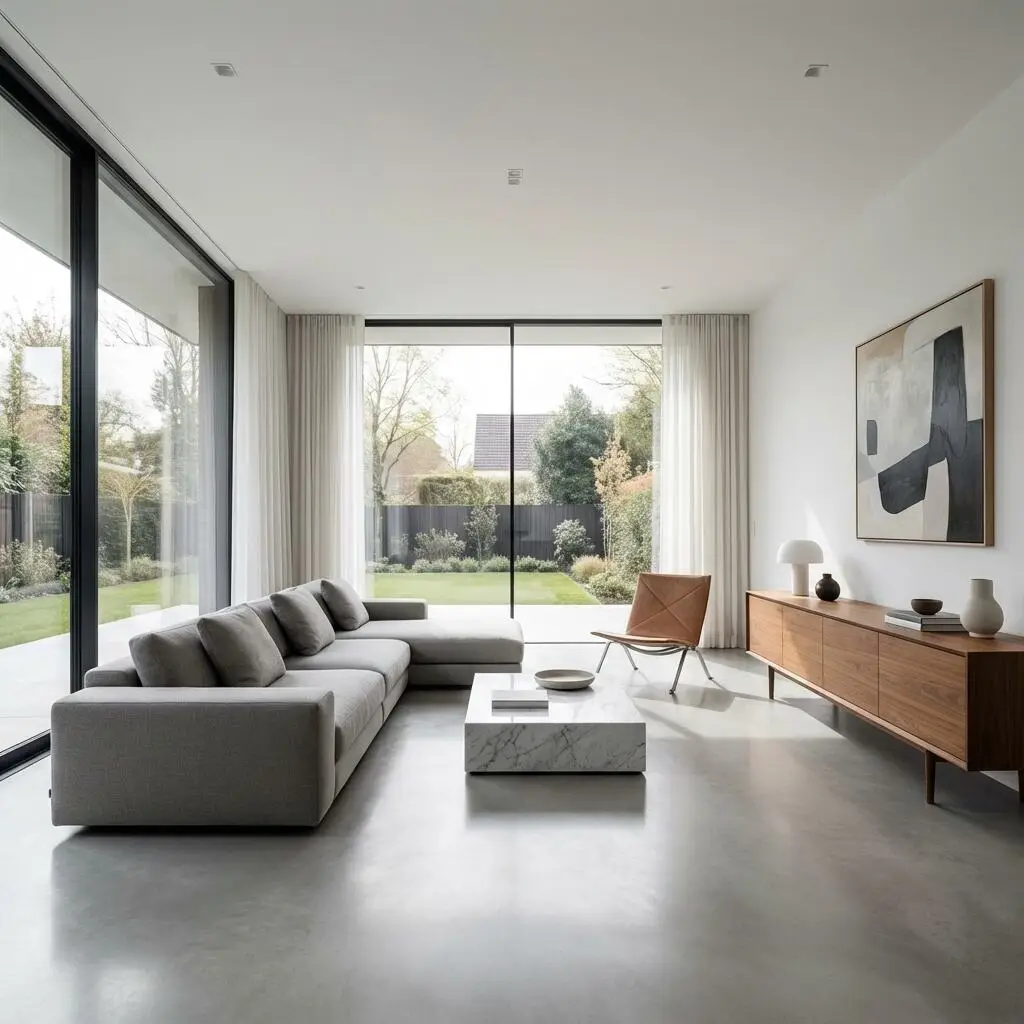
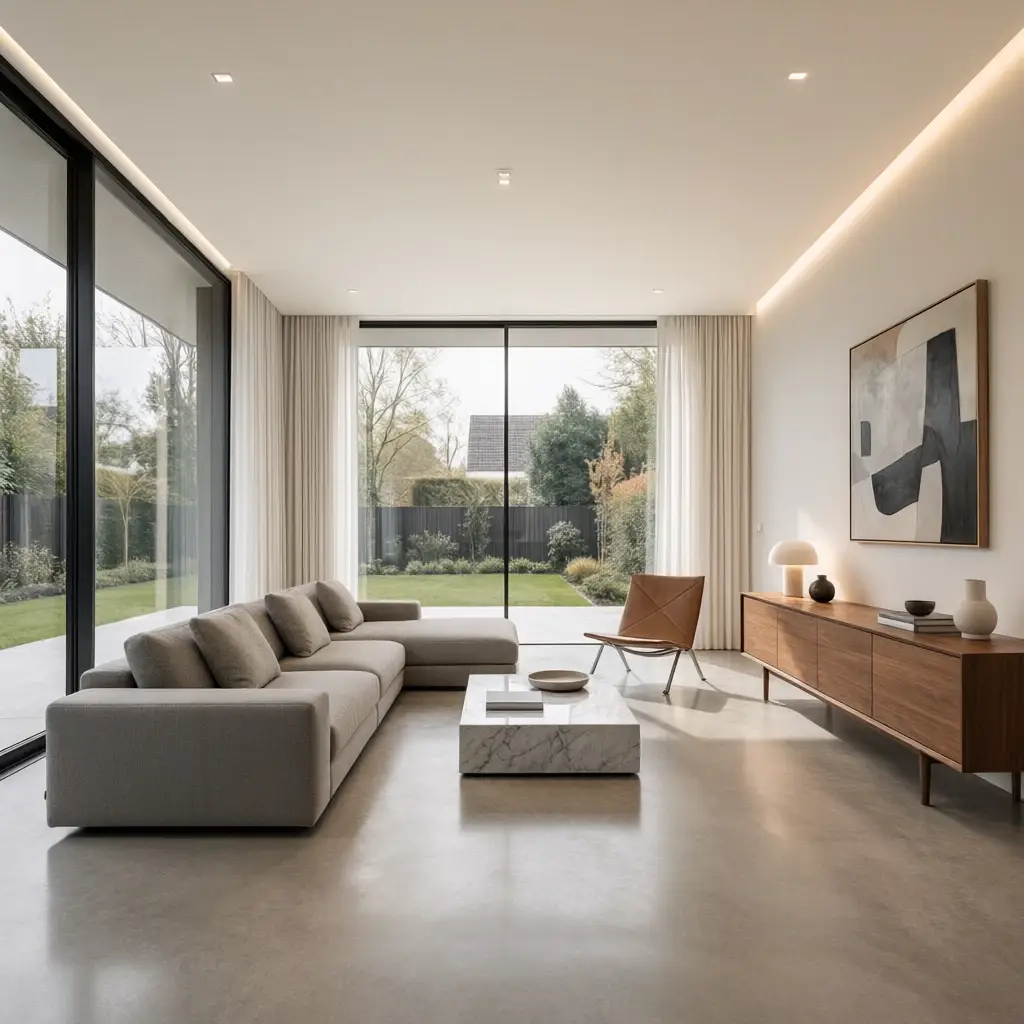
Explore clean furniture lines, balanced neutral colors and warm wood accents. The original room photo provides the reference for the camera angle, windows and spatial proportions.
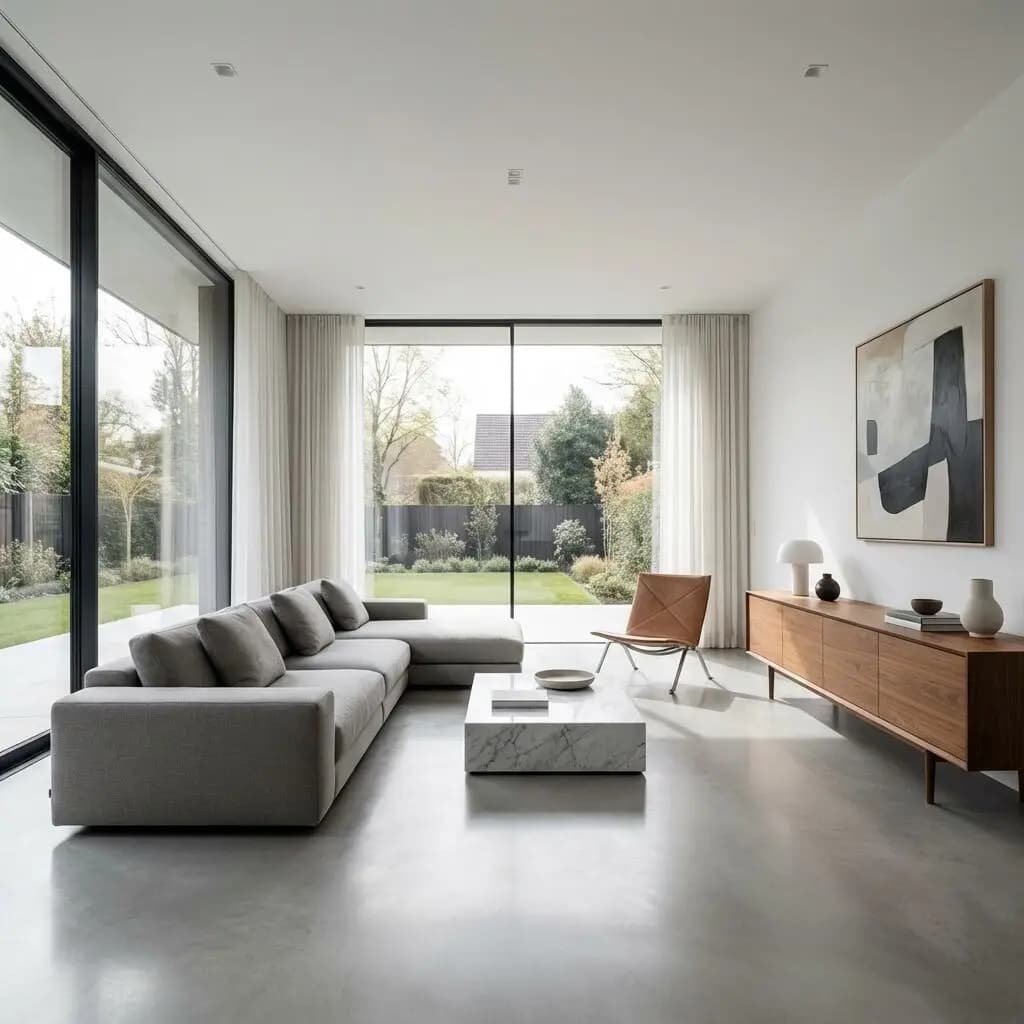
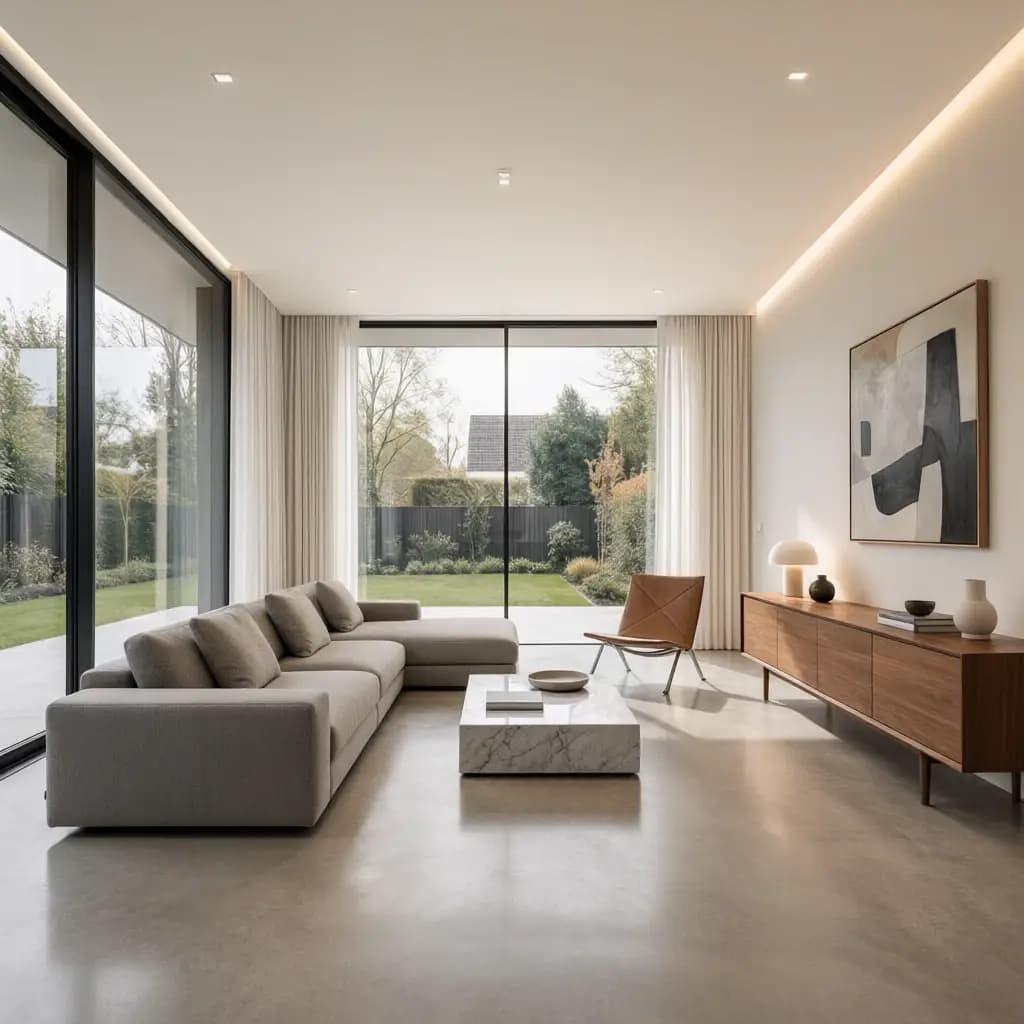
Compare real outputs generated from the same room photo with each selected style.
Explore clean furniture lines, balanced neutral colors and warm wood accents. The original room photo provides the reference for the camera angle, windows and spatial proportions.
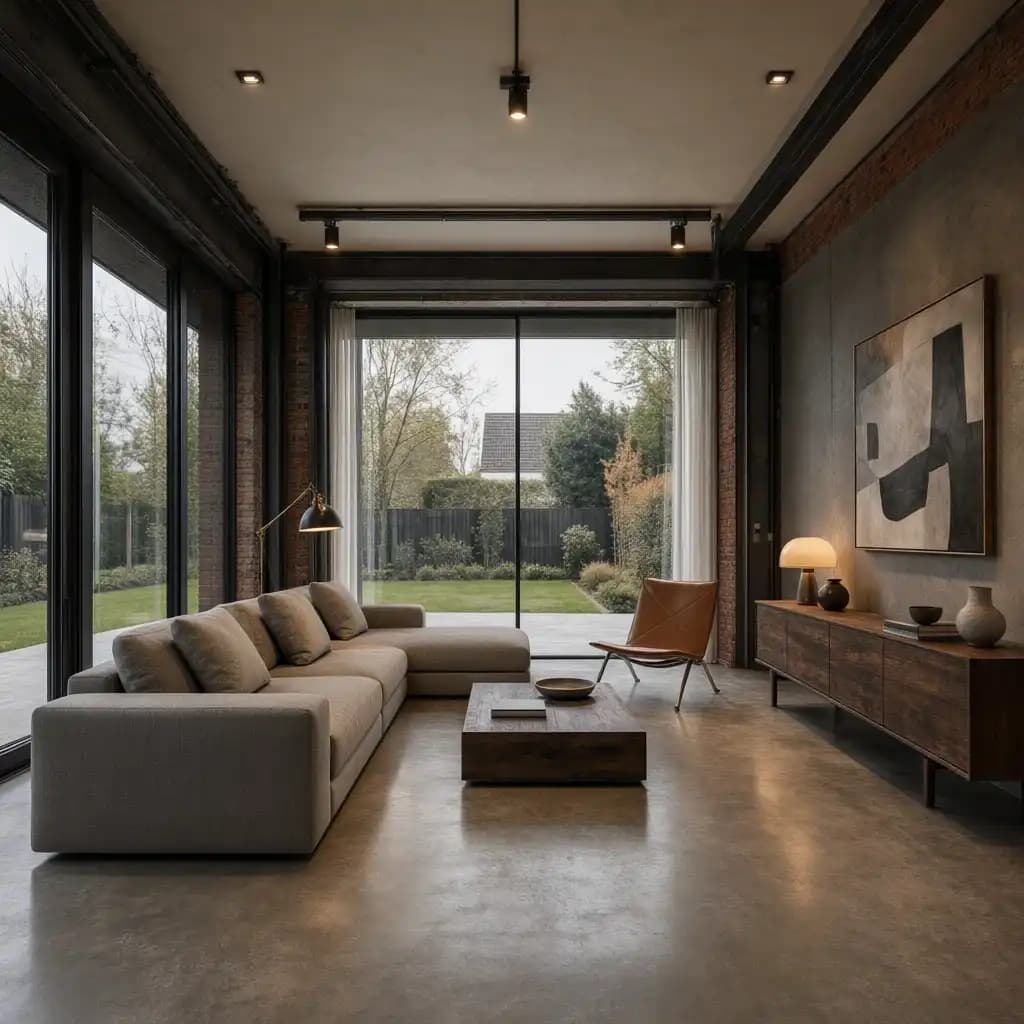
Compare leather, dark timber and metal details against the same original room. Use the preview to judge how a stronger material palette could work in your space.
Try earthy colors, woven textures, patterned rugs and plants to build a more relaxed interior. Keep the same upload to compare this direction with other room styles.
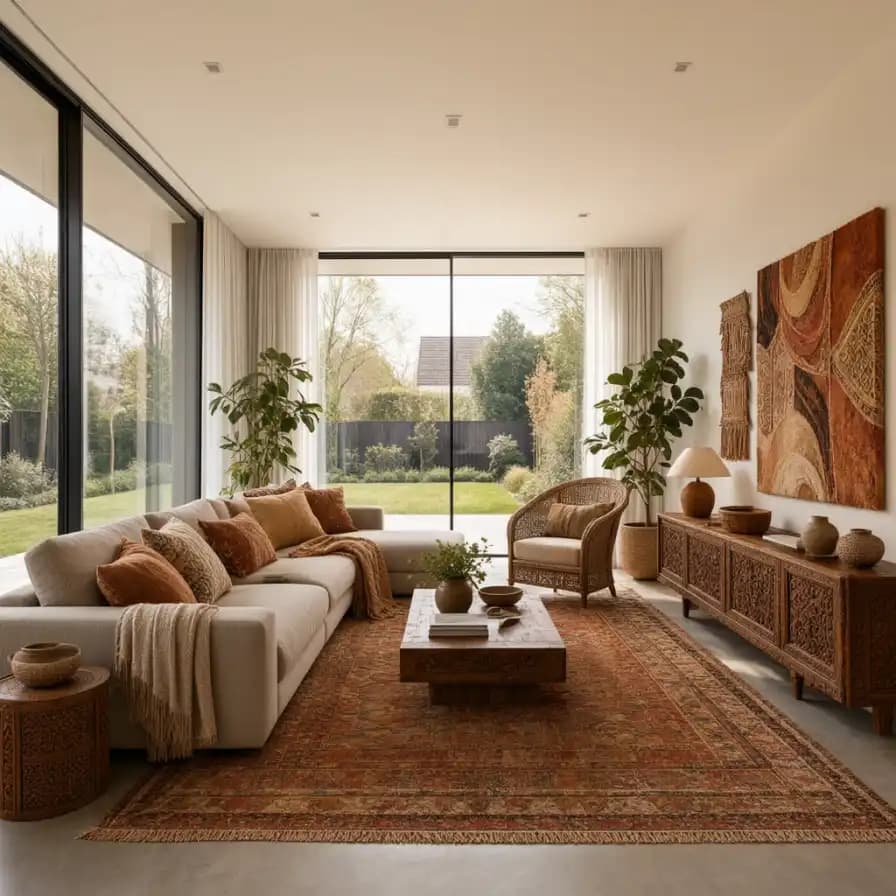
Start with a room photo and explore furniture, colors and decor before making changes.
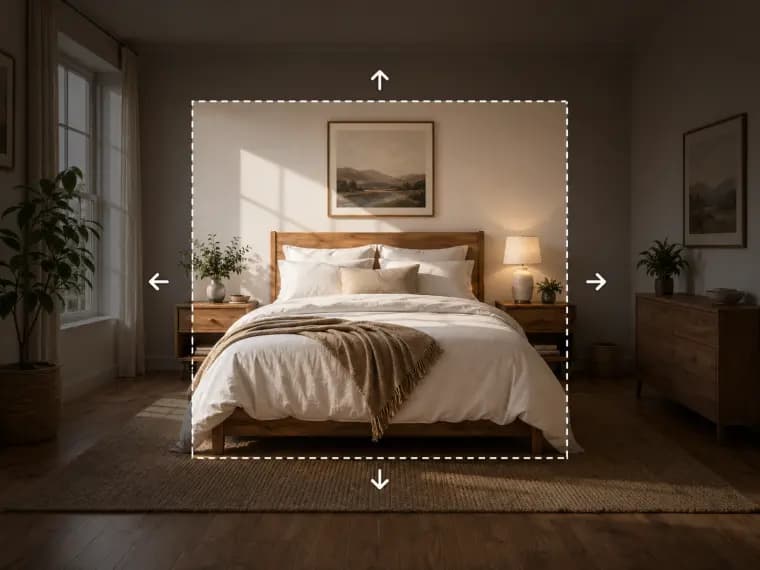
Choose a clear room photo that shows the walls, windows and floor.
Select the room type and a design style, or describe your own ideas.
Review the result against your original, download it or continue editing.
Compare modern, Scandinavian, industrial, New Chinese and other design directions from one photo.
Explore furniture and decor for living rooms, bedrooms, kitchens and dining rooms.
Use the existing walls, windows and perspective to guide the design. Compare the generated result with your original.
Preview different furniture, fabrics, wall finishes and accessories before choosing your direction.
Describe the colors, materials and pieces you want to keep or change instead of choosing a preset.
Download the result or continue editing details with Raphael image tools.
Answers about room photos, design styles and what the generated images can show.
Upload a clear room photo, choose its type and a style, then generate. You can also use a custom description to request specific colors, furniture or decor.
Choose a living room, bedroom, kitchen or dining room, with 9 styles: modern, Scandinavian, Christmas, industrial, bohemian, luxury, New Chinese, European and Mediterranean.
The generation instructions ask to preserve the room structure, door and window positions and viewpoint. AI can still alter details, so compare the result with the original photo.
Yes. Use a well-lit photo showing as much of the space as possible. Existing furniture may be replaced to match the chosen style; describe any pieces you want to keep in Custom mode.
Yes. Keep your uploaded photo and select another style to generate a new version. The generation button shows the credit cost before you start.
No. It creates a visual design concept. Room measurements, circulation, plumbing, electrical work and installation details need separate verification before any renovation.
Explore more effects and ways to edit your images.

Upload your room photo, choose a room type and one of 9 interior styles, or describe your ideas to preview a new look.