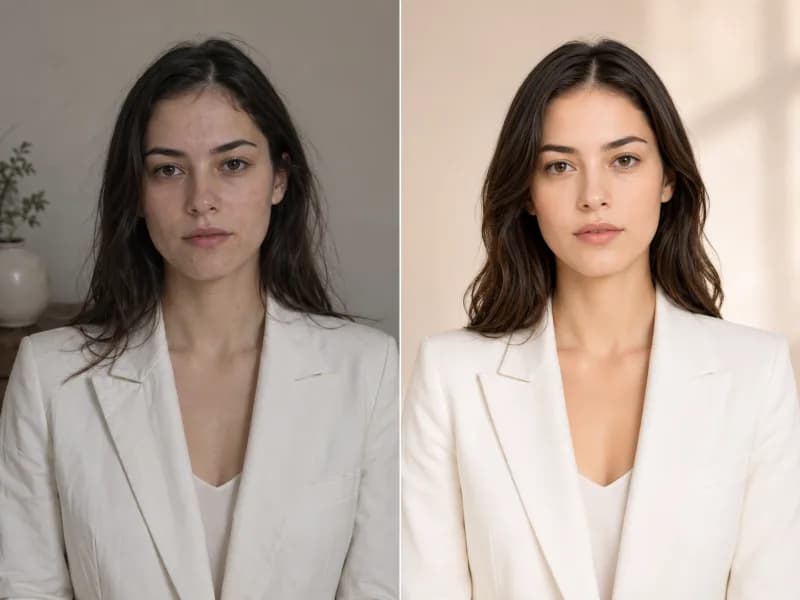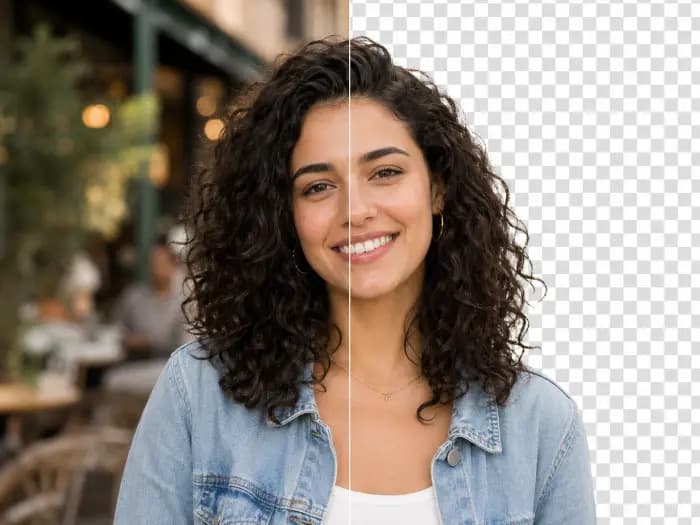
Clean Up a Travel Portrait
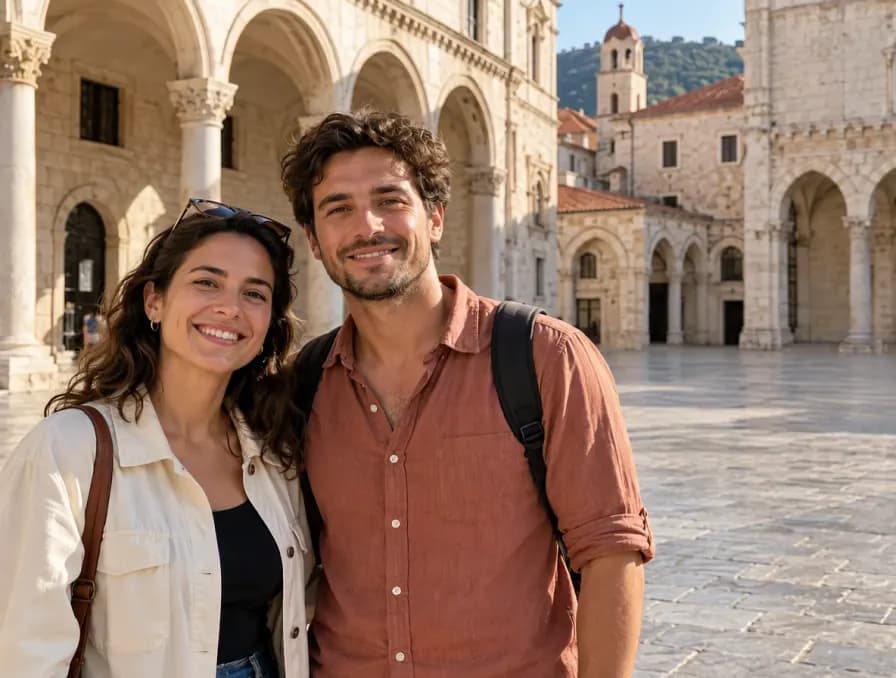
Remove background passersby from a travel portrait and compare the main subject, paving and architecture with the original.
 Original
 Result
Compare the original photo with its actual generated result.
Remove background passersby from a travel portrait and compare the main subject, paving and architecture with the original.
OriginalResultCompare the original waterline and beach with the generated result after background walkers are removed.
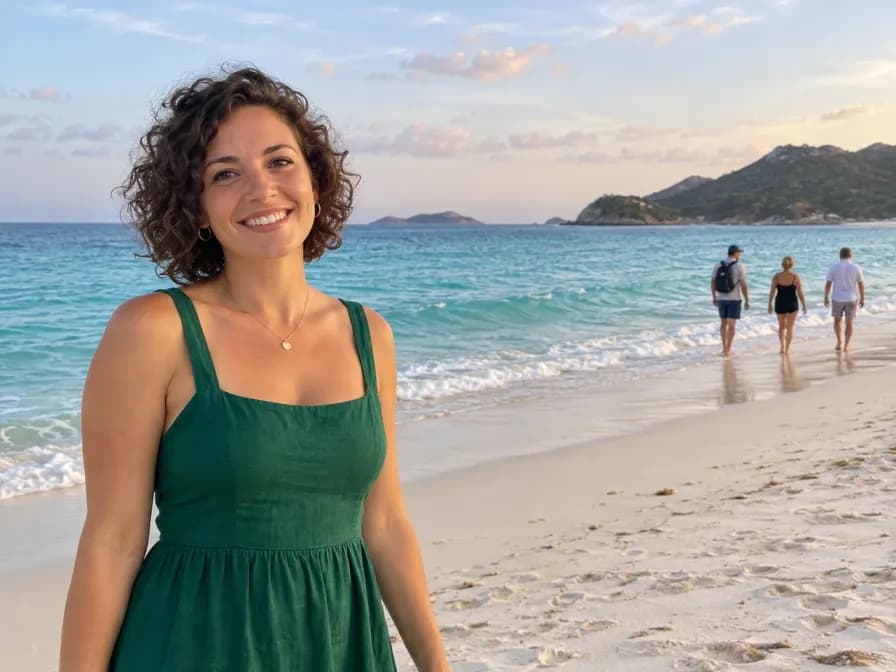 Original
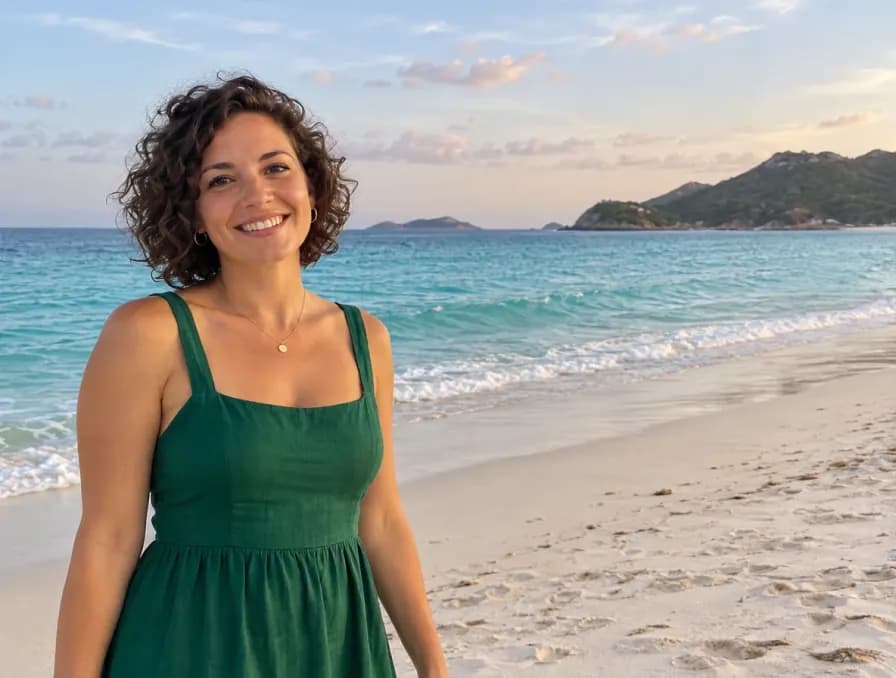 Result
Use two foreground friends as the reference while removing unrelated tourists behind them.
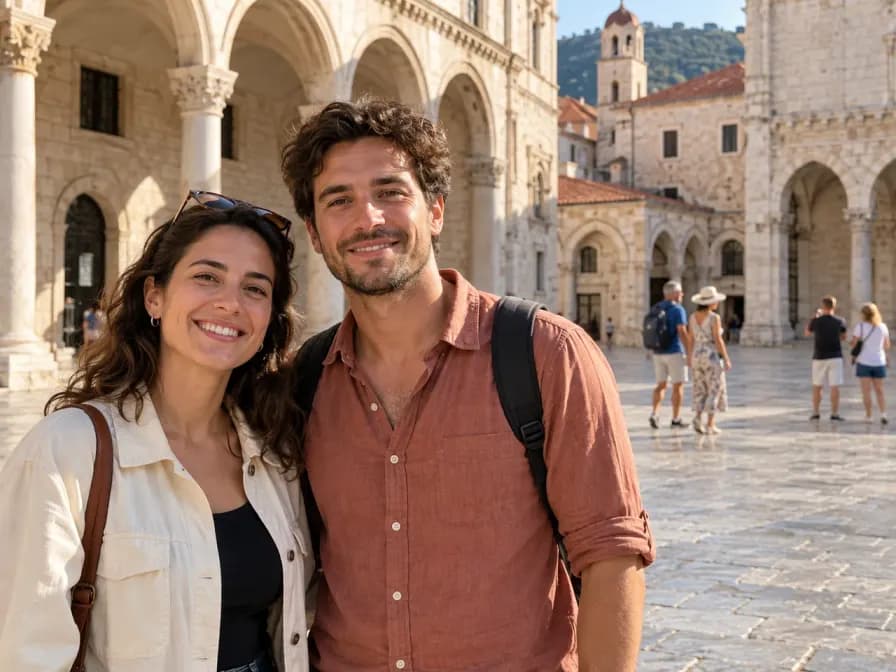 Original
 Result
Remove people farther down the sidewalk while keeping the foreground diner and table as references.
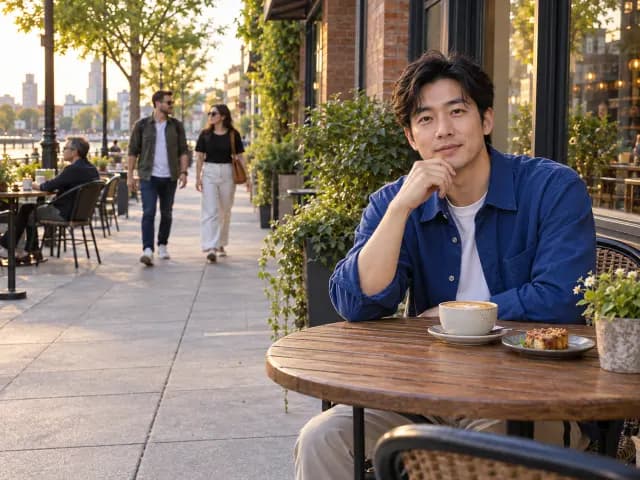 Original
 Result
One photo and one action. No manual selection required.
Choose a photo with a clearly recognizable main subject.
Start the automatic edit. AI identifies incidental people and fills the background.
Compare the main subject and background with the original, then download.
Upload the original and start removal without drawing a mask or selecting each person.
The edit uses the foreground person or posed group as its reference. Compare faces and clothing with the original.
AI fills the removed areas using nearby colors, textures, light and perspective.
Clean up incidental people behind a portrait, beach photo or travel group.
Check the edited background and your main subject before downloading the generated photo.
Use manual erase for precise control over a specific person or object after reviewing the result.
How automatic identification works and when to use manual erase.
No. Upload a photo and click Remove background people. AI identifies incidental background people automatically.
The instructions ask to keep the main foreground subject or intentionally posed group. Use a clear photo and review the result, especially when subjects overlap.
AI can redraw details in faces, clothing and the background, and may miss very distant people. Compare the generated image with the original before saving it.
Use manual erase in the image editor to mark the exact area. This automatic tool is designed for incidental background people.
Explore more effects and ways to edit your images.

Upload one photo and let AI remove background passersby while keeping the main subject as its reference. No brushing or selection needed.