Give your selfie a pop-art look
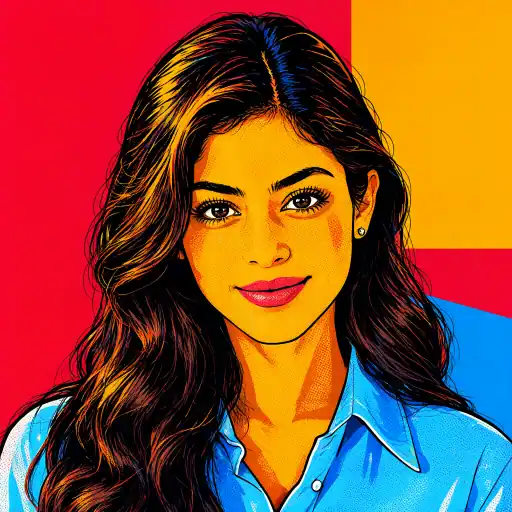
Make the person in your selfie the focus with a few bold color areas, halftone dots and a simplified background for a flat silkscreen-poster look.
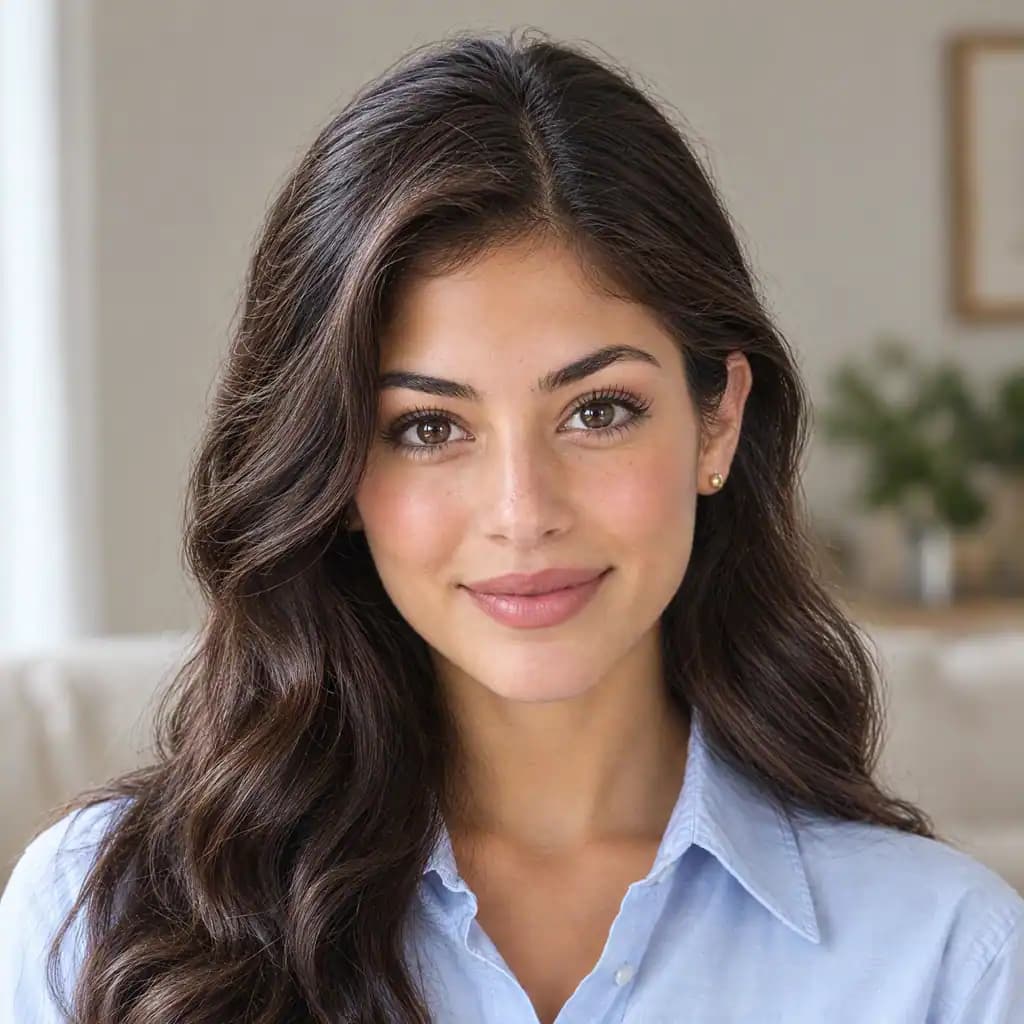
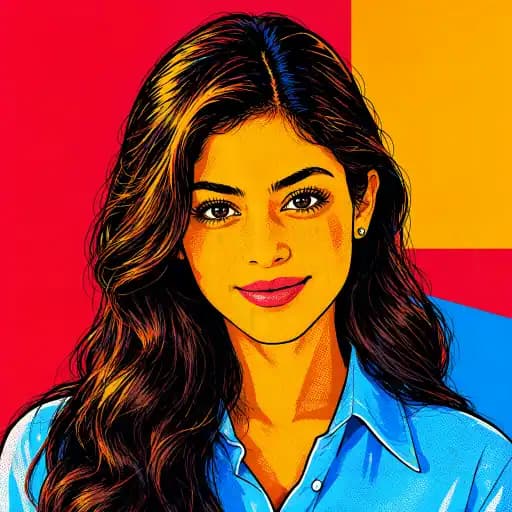
Explore the visual direction with the existing style illustration.
Make the person in your selfie the focus with a few bold color areas, halftone dots and a simplified background for a flat silkscreen-poster look.
Start with the person in a street photo and simplify or replace the surroundings for a person-focused pop-art poster portrait.
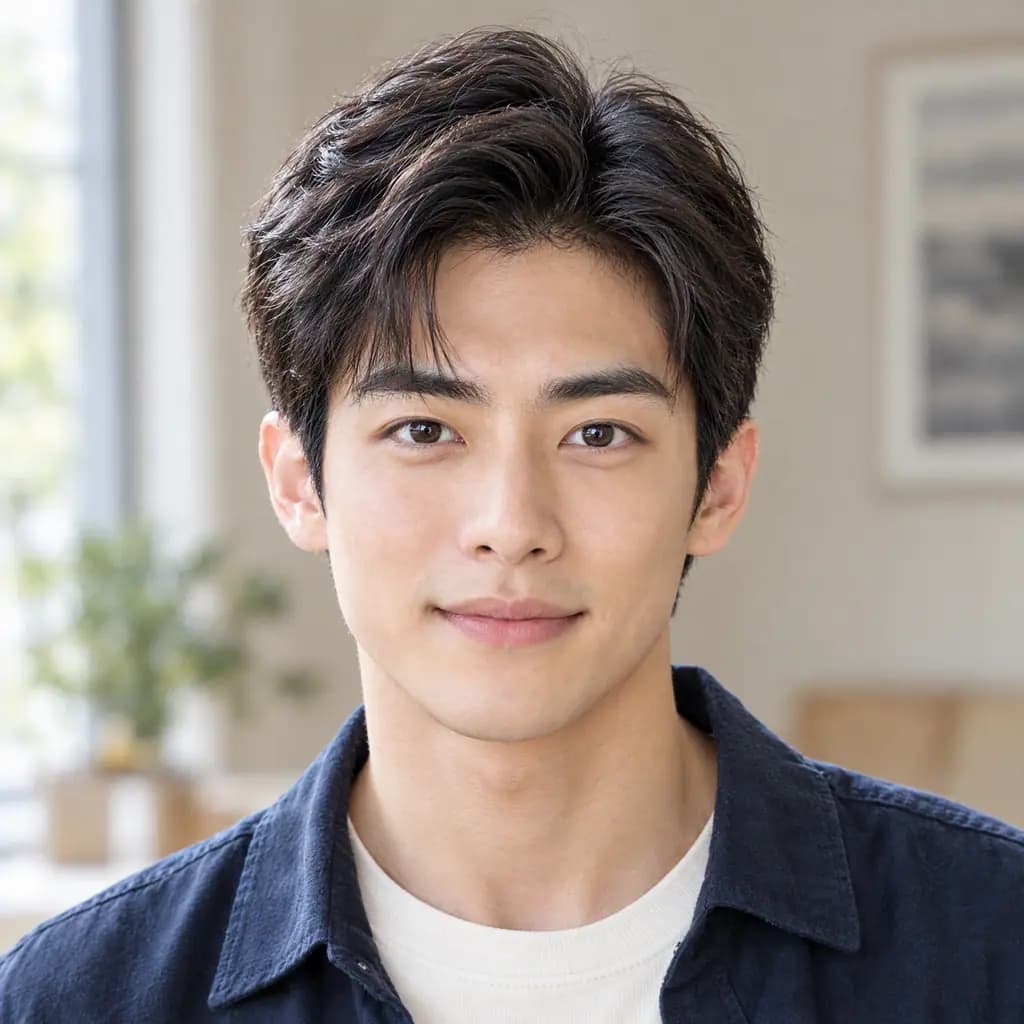
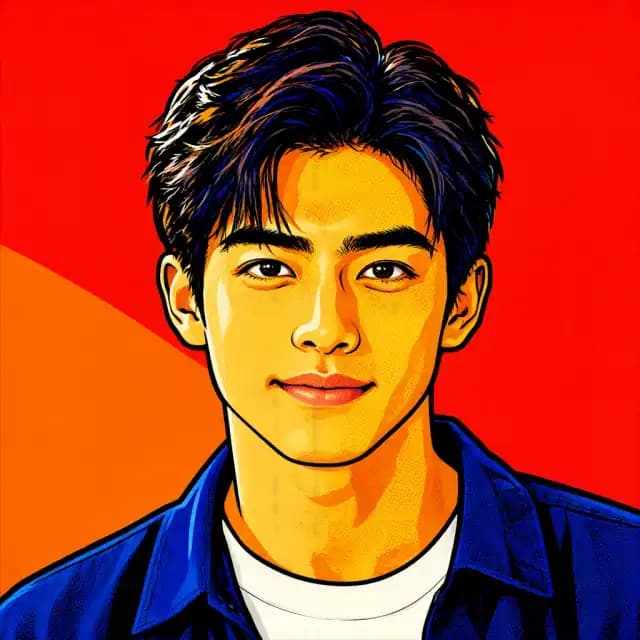
Use simple color areas and printed dots to bring attention to the gaze and expression against a simplified background.
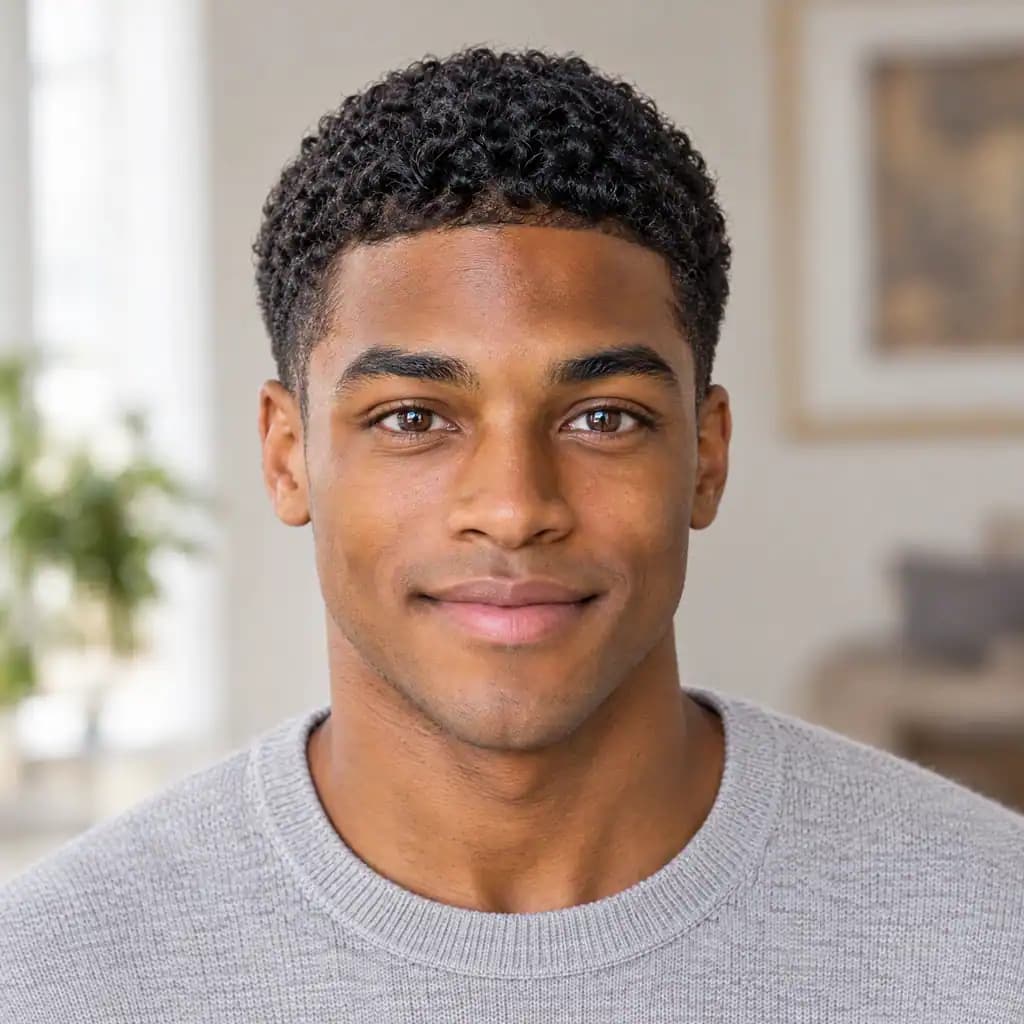
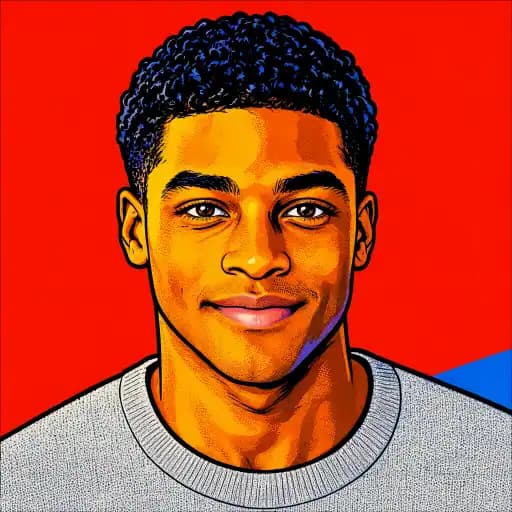
Restyle a portrait of a friend or family member as text-free pop art with a simple background, then add your message in a greeting-card layout.
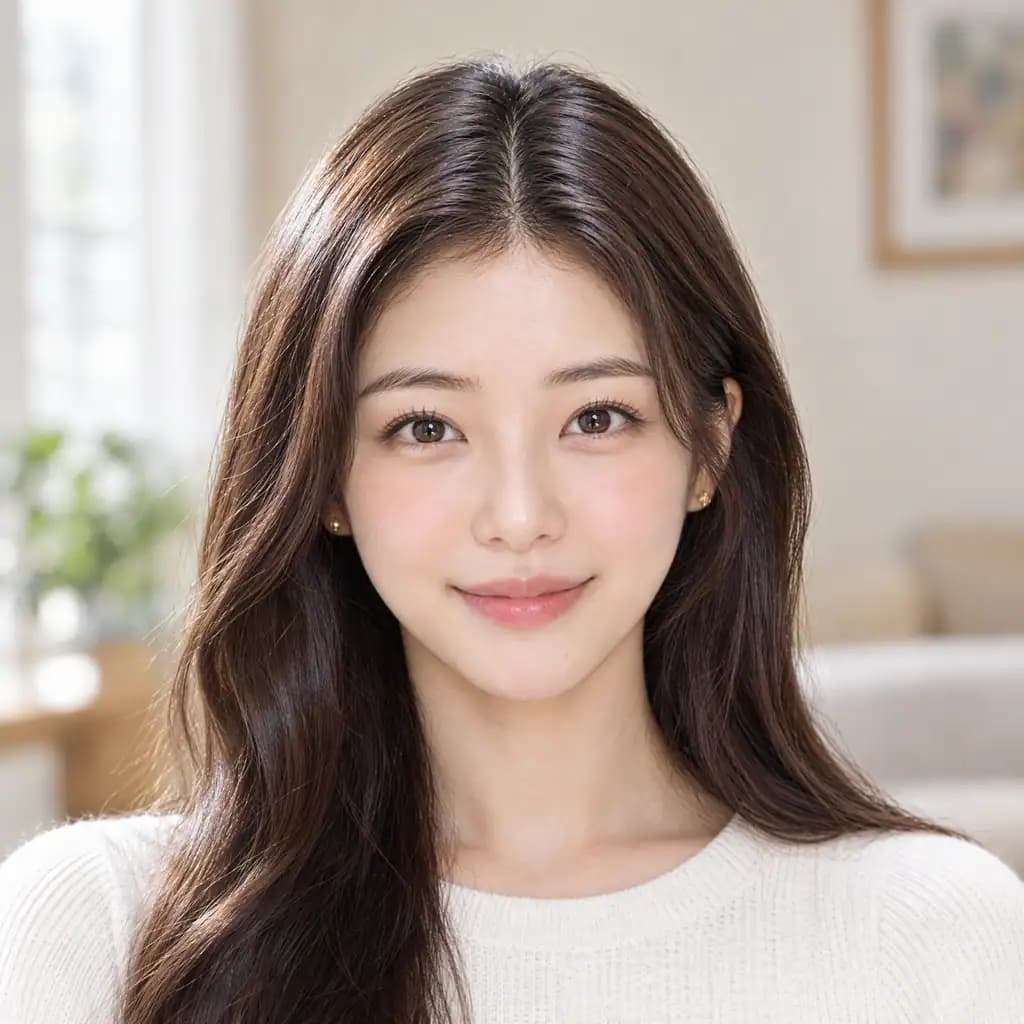
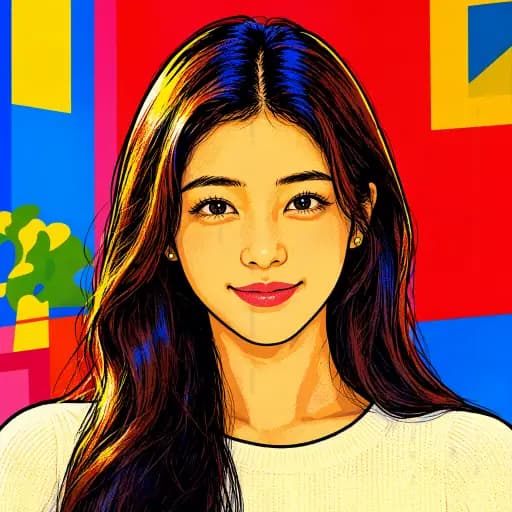
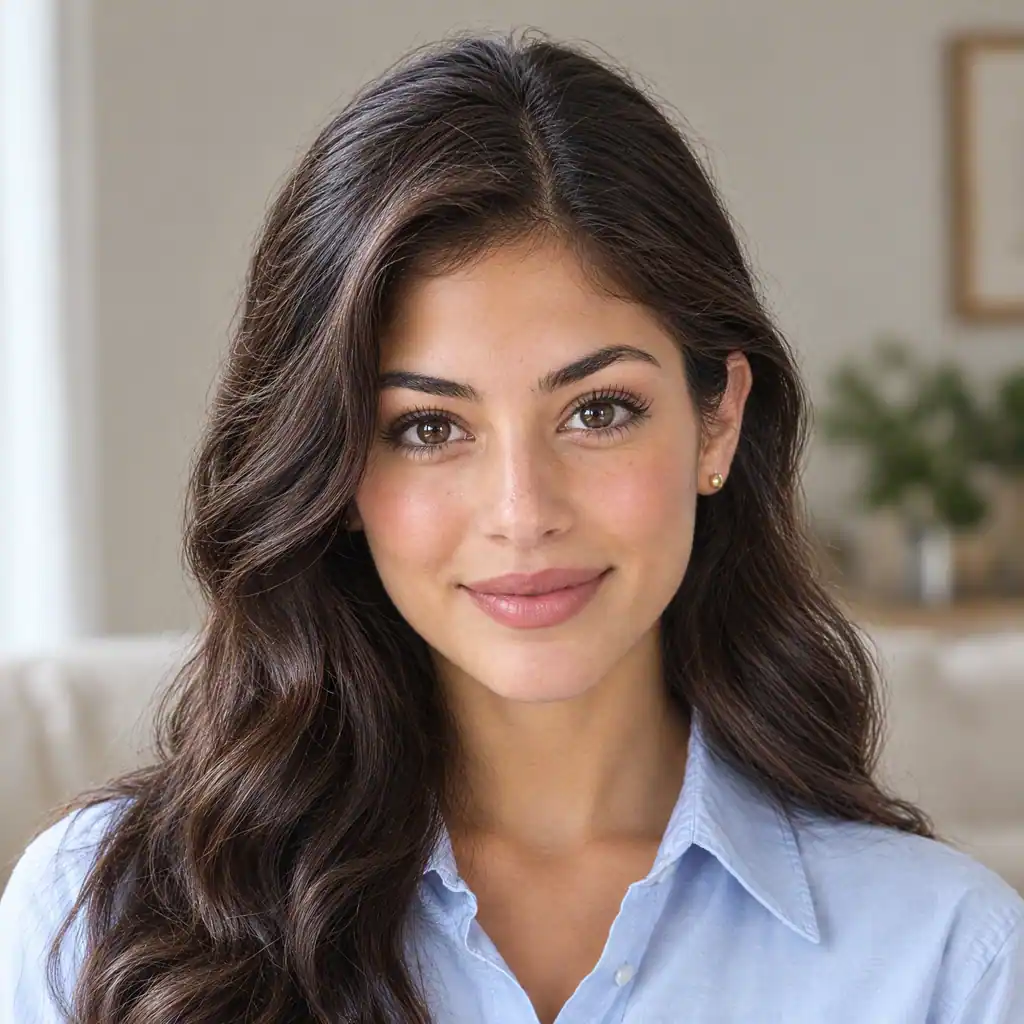
Upload a photo, generate the fixed style, then save or keep editing.
Choose a JPG, PNG or WebP image with a clear subject. Avoid a blurred face or heavy obstruction.
The look is already selected, so you do not need to write a prompt. Sign in, review the credit cost and generate.
Open your result to view and download it, or continue with another image tool.
Put the subject at the center of a flat silkscreen-poster composition.
Use clear, simple color regions to define the face and silhouette.
Add a retro printed feel with visible halftone dots.
Simplify or replace the setting to bring attention to the person.
Explore one complete portrait without added text or comic panels.
Review the subject and composition, then save the result you like.
Questions about photo conversion, suitable inputs and your results.
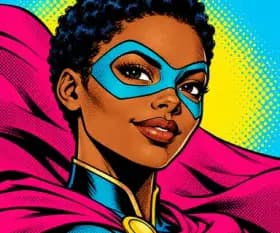
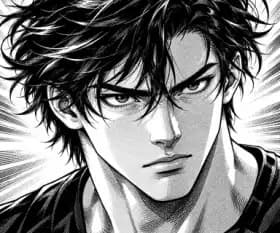
The pop-art look focuses on the person with a few bold color areas, halftone dots and a simplified or replaced background. Photo to Comic redraws the full original scene in an American comic style, retaining the action, objects and setting. Both create a single image.
Use a well-lit single-person portrait with clear, unobstructed facial features. Blur or a distant face can reduce detail.
This style creates a single full-bleed composition. A four-panel layout is not part of this effect.
The selected style defines the colors, outlines and halftone treatment. Separate dot-density and color sliders are not provided.
AI redraws the subject using your photo as a reference, so facial features and expression can change. Compare the result with your original before saving.
The result is a digital image. Before printing, check the exported dimensions against your print service’s requirements.
Explore more effects and ways to edit your images.
Put the person in your photo at the center. Explore a flat silkscreen-poster portrait with a few bold color areas, vintage halftone dots and a simplified background, all in one text-free image.