Gold-glitter vinyl: a bold sleeve concept
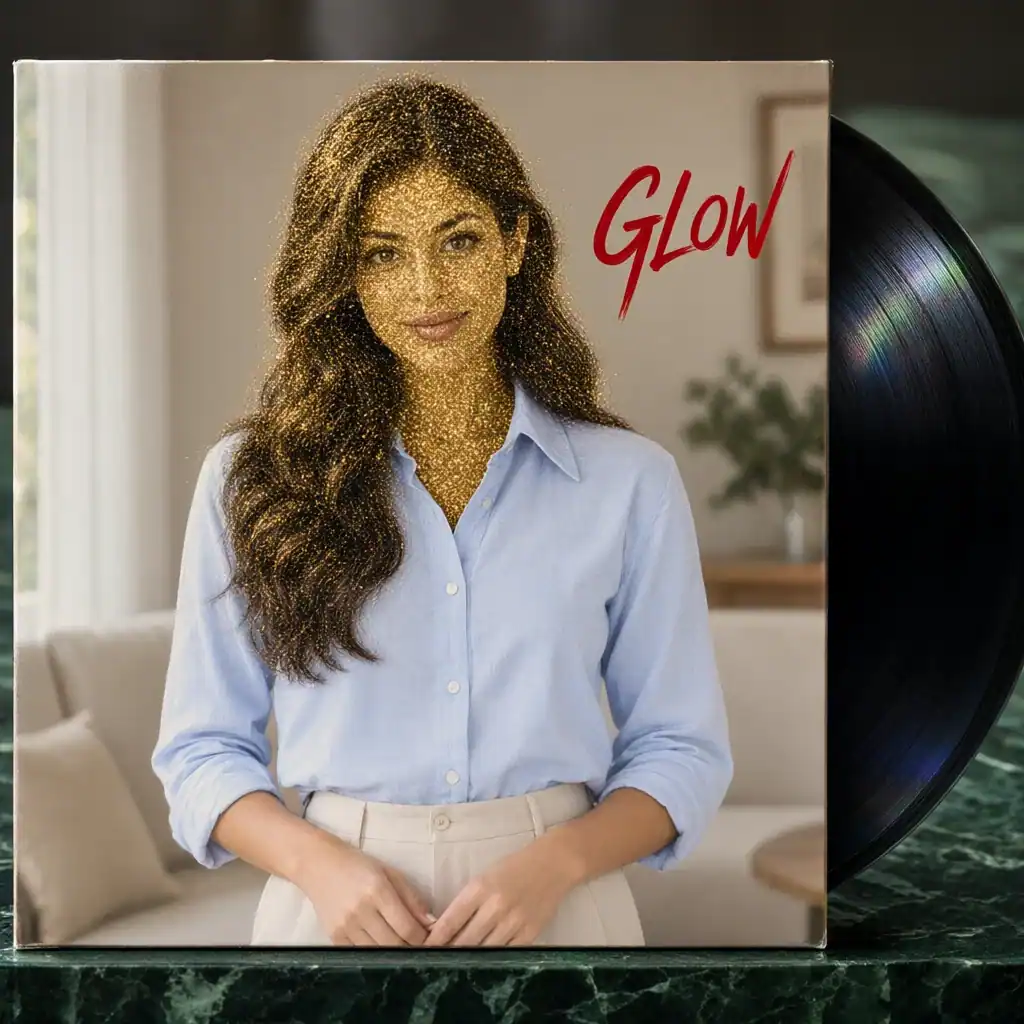
Reimagine your portrait with shimmering gold glitter on a vinyl-style sleeve for a bold, performance-inspired cover concept.

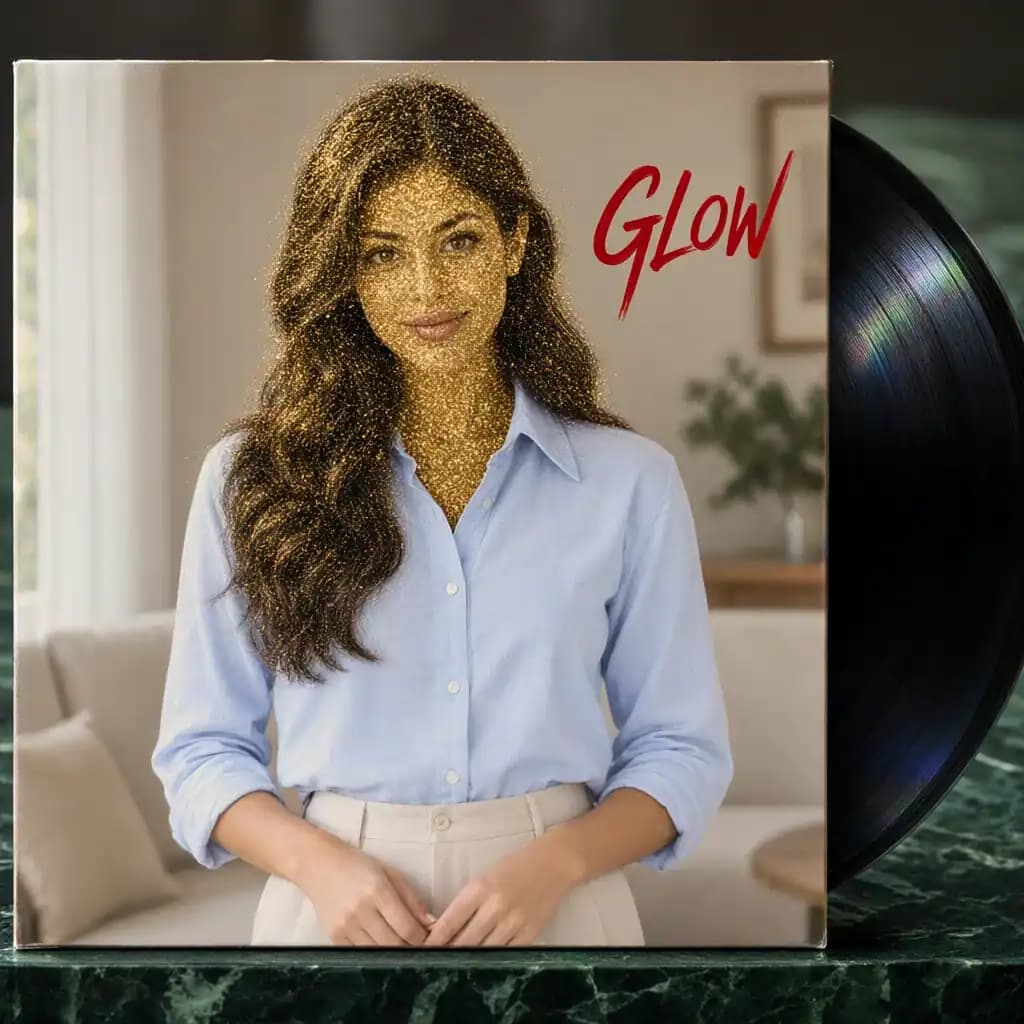
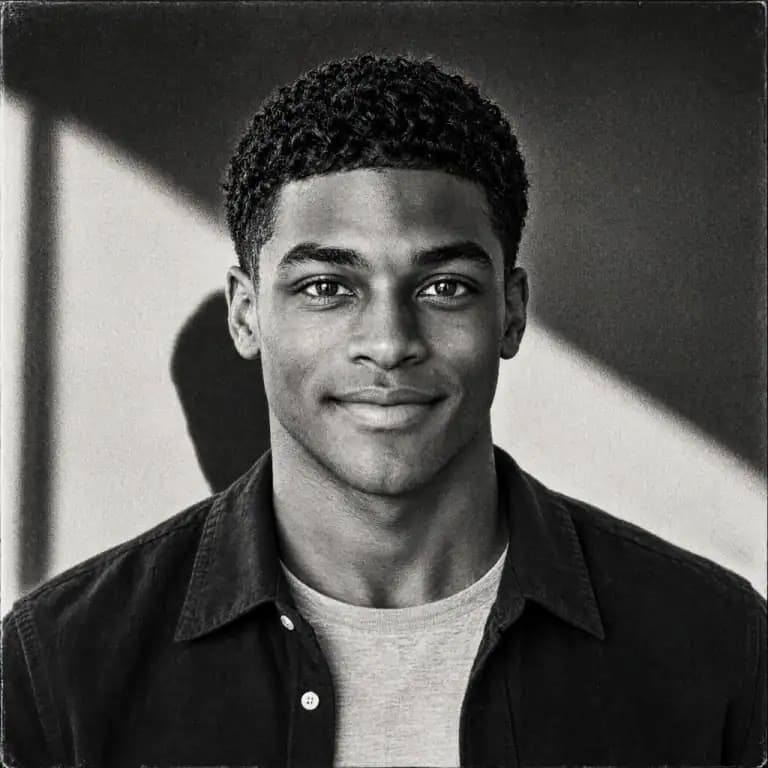
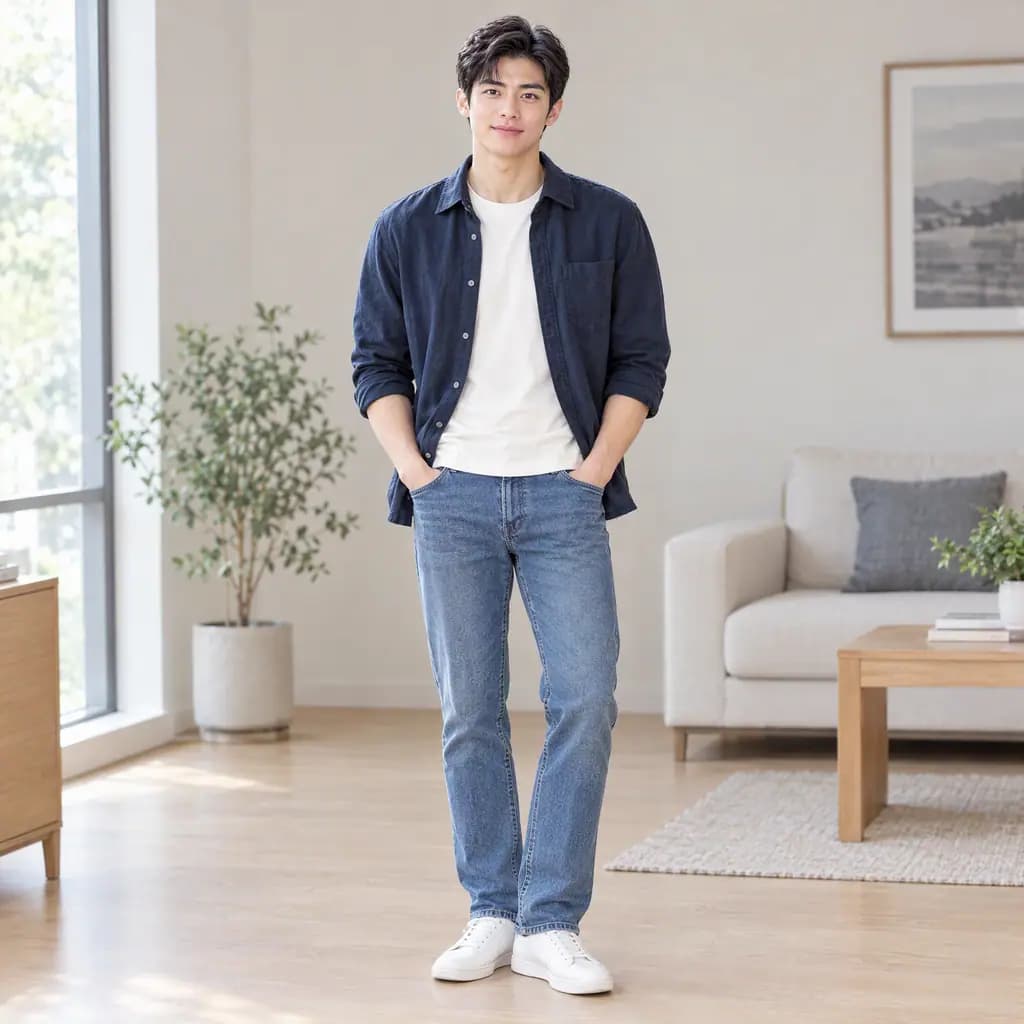
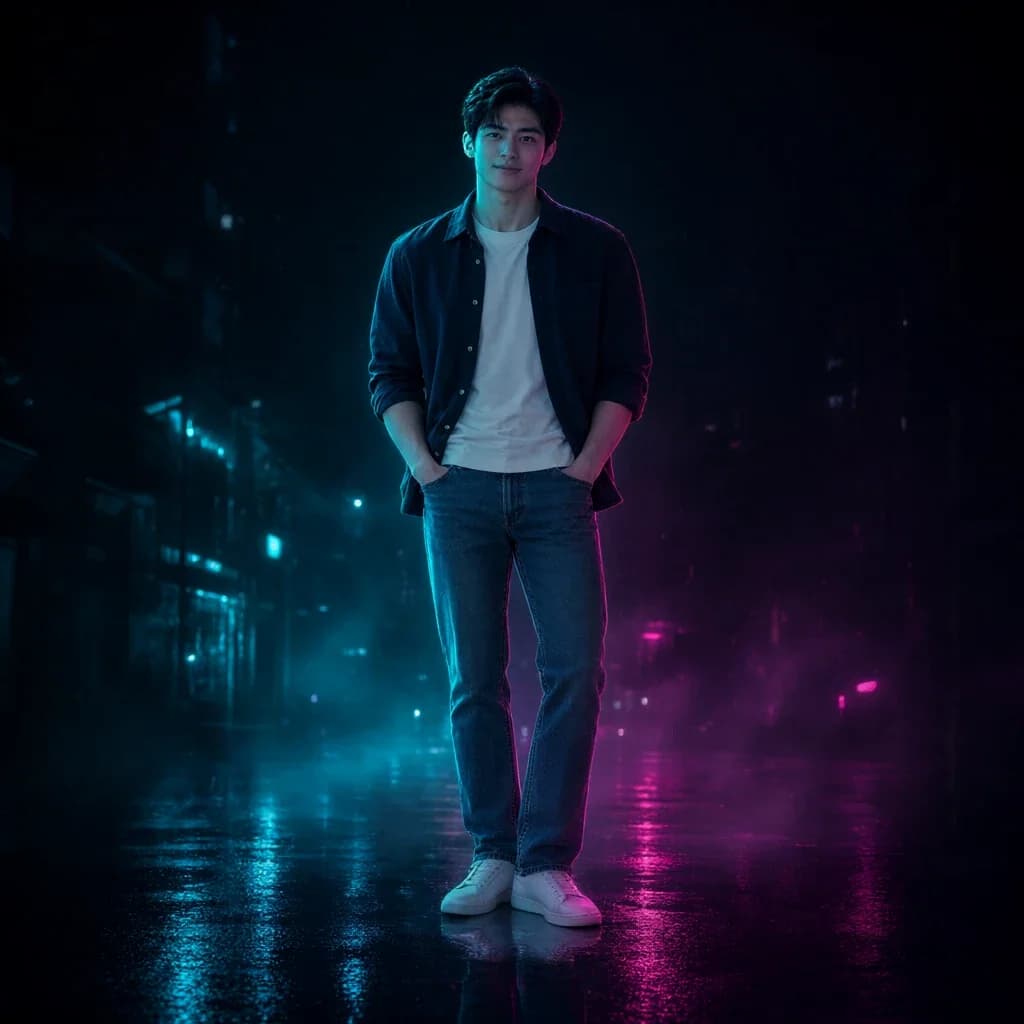
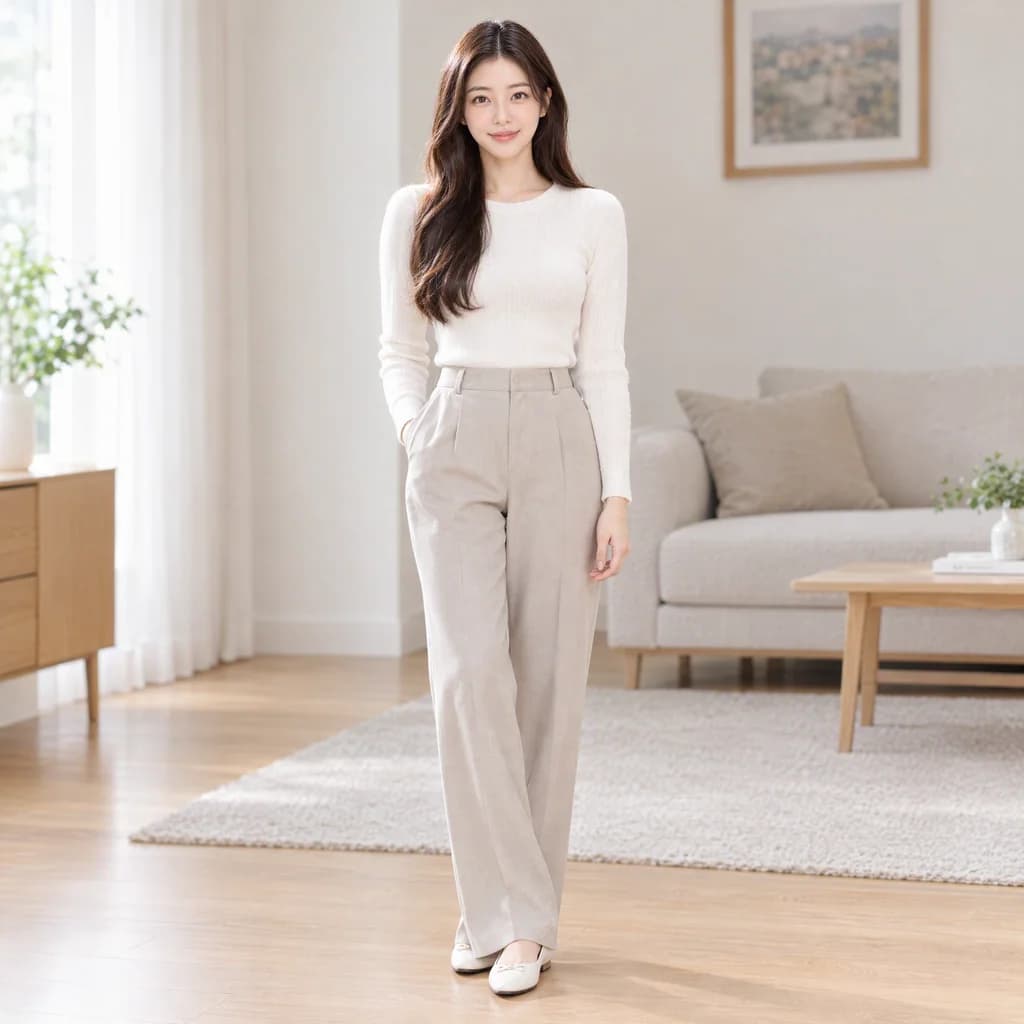
See the original photo and the generated result for each preset.
Reimagine your portrait with shimmering gold glitter on a vinyl-style sleeve for a bold, performance-inspired cover concept.
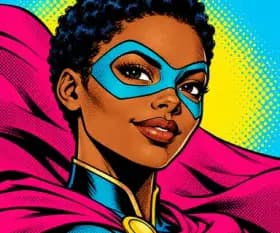
Build the concept around your portrait with monochrome tones, editorial composition and open space for a restrained cover look.

Keep your portrait as the focal point and explore vivid purple-blue light and a nighttime atmosphere for a more dramatic cover concept.
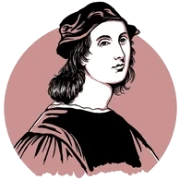
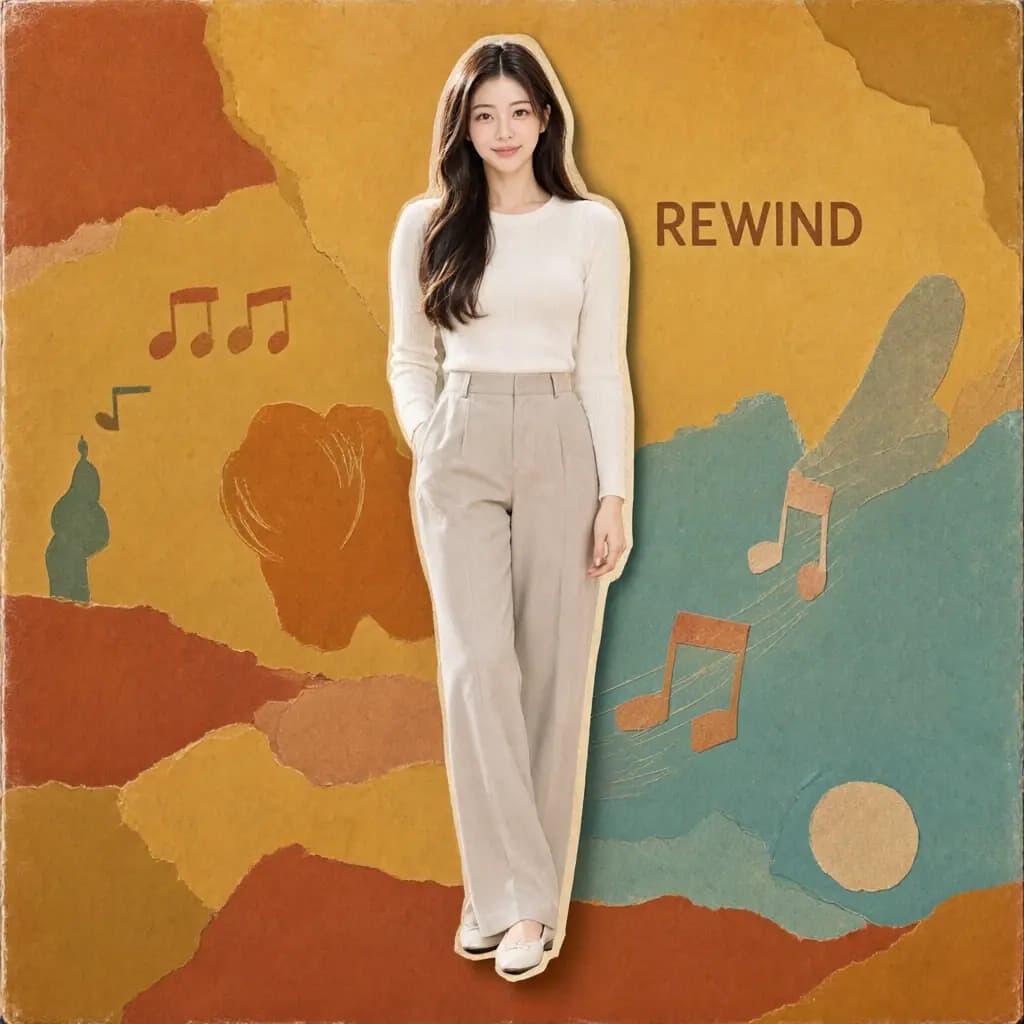
Start with your portrait and explore film grain, paper textures and layered collage for a cover with a retro mood.
Upload a photo, choose a preset, and view your result in this workspace.
Choose a clear photo with the subject fully visible.
Select a preset, then review the credit cost before generating.
Compare the result, download it, or continue with another image tool.
Give the cover a personal focal point with your uploaded portrait.
Explore gold-glitter vinyl, monochrome editorial, neon night and retro collage.
Build the mood and visual focus around the person in your photo.
Explore different moods through color palettes and lighting.
Try glossy, editorial and textured collage treatments.
Save a visual concept, then finish exact lettering and layout separately.
Answers about choosing photos, styles, and using your results.
Yes. The tool starts from your uploaded photo and builds a cover concept around the person in it.
Explore four directions: gold-glitter vinyl, monochrome editorial, neon night and retro collage. Each starts from your photo.
AI-generated lettering can be inaccurate. For exact album titles or artist names, create the artwork first, then add and check the text separately.
The tool creates a visual cover concept. Before a release, check the downloaded file against the destination platform’s artwork, content and rights requirements.
The output is a digital image. The vinyl option is a sleeve mockup and does not include print dielines, bleed, color separations or complete packaging files.
AI uses your photo as a reference and can change facial details, clothing, background and composition. Review the subject and overall image before saving.
Explore more effects and ways to edit your images.

Start with your portrait and explore gold-glitter vinyl, monochrome editorial, neon-night and retro-collage cover concepts. Choose a visual direction, then continue with the final typography.